> ## Documentation Index
> Fetch the complete documentation index at: https://docs.regasolutions.io/llms.txt
> Use this file to discover all available pages before exploring further.
# The dashboard
> The screen where listings land the second they are born, and where you buy: what every control does, what can refuse it, and how to be faster than the other buyers.
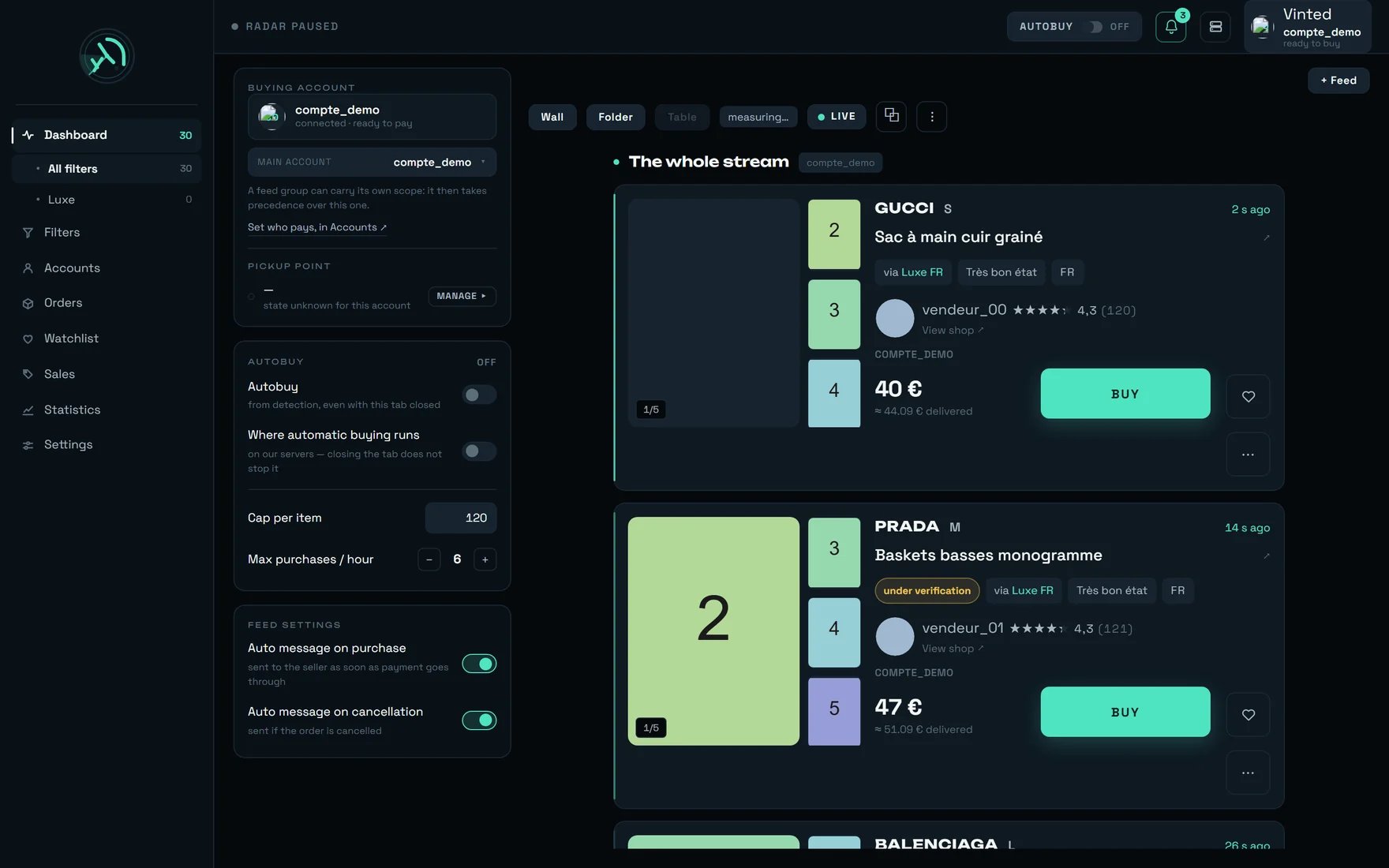
This is the live shop window for everything the radar finds: listings appear the second they are born
on Vinted, and a **BUY** button sits on each one. Everything else in REGA serves this screen.
 The radar sweeps around **150 listings per second** for all customers together. A complete card
reaches the screen **\~950 ms** after the listing is born; its details follow at \~734 ms and its photo
at \~1026 ms. You will never watch those numbers go by — what you see is the result.
***
## What you are looking at
The radar sweeps around **150 listings per second** for all customers together. A complete card
reaches the screen **\~950 ms** after the listing is born; its details follow at \~734 ms and its photo
at \~1026 ms. You will never watch those numbers go by — what you see is the result.
***
## What you are looking at
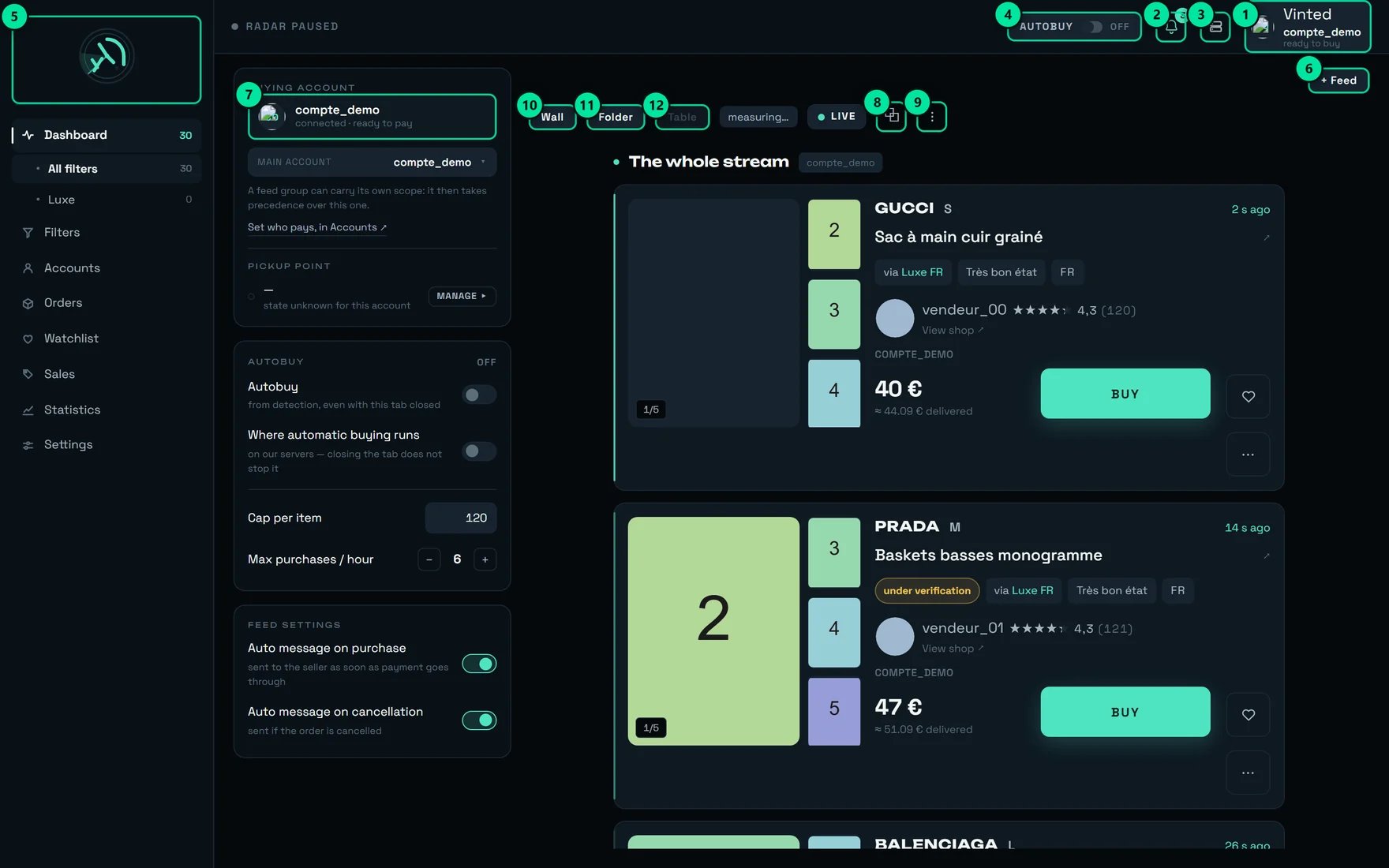 | № | The control | What it does |
| ------ | ------------------------------------- | ------------------------------------------------------------------------------------------------------------------------------------------------------------ |
| **1** | The account badge, top right | Tooltip: "compte\_demo will pay for the next purchase — ready to buy." This is the account that will pay, and therefore the address the parcel will go to. |
| **2** | The bell | "3 unread notifications" on our test account. This is where bank validation requests arrive. |
| **3** | Administration | REGA staff only — this button does not appear on your account. |
| **4** | The **AUTOBUY** badge (here "OFF") | Tooltip: "Automatic buying disarmed". One click arms automatic buying **on our servers**. |
| **5** | The logo | "rega — home". |
| **6** | **+ Feed** | "Open a feed, or go back to the whole stream". |
| **7** | The buying account card | "See this account's delivery address and payment method". Unfolds the address and the saved card. |
| **8** | **⧉** | "Open the general stream in a detached window". |
| **9** | **⋮** | "Recent purchases and conversations". |
| **10** | **Wall** | "Many listings at a glance, photo first". |
| **11** | **Folder** | "One listing at a time, all its details". |
| **12** | **Table** (greyed out in the capture) | "The table aligns its columns across the full width: it needs 1138 px…" — that is 1138 px of width for the listings alone, the window minus the side panels. |
The **Table** button (**12**) is **greyed out but still there**, and it tells you why it refuses. That is the rule for
this whole screen: an unavailable control does not disappear, it explains itself. **Always hover
before concluding something is broken** — on this screen, nearly everything that looks broken carries
its reason in a tooltip.
Top left of the capture, the radar's state: "RADAR ACTIVE", "RADAR PAUSED" (that is the case here),
"RADAR UNREACHABLE", or simply "RADAR" while it is not known yet.
***
## Your first half hour
In the **BUYING ACCOUNT** panel, the sub-line must read "connected · ready to pay". If it reads
"not connected — the purchase would fail", nothing will go through. Unfold the account card
(badge **7**) and check both blocks, **ADDRESS** and **PAYMENT**. Without an address and a card a
purchase cannot go through — and the screen says so in plain words.
**Filters** screen → open each filter → the **€ max** field. Left empty, the screen warns you
once: "No cap: this filter will buy whatever the price." That is the only cap automatic buying
actually reads.
Arming the badge is not enough: each filter is armed separately, in the Filters screen. The list
of armed filters is re-read **every 20 seconds** — after arming somewhere else, give it 20 s
before concluding that "it is not buying".
Click **BUY** on a listing, then follow the line that appears in **RECENT PURCHASES**
(the **⋮** button). That line carries the truth: the account actually committed, and the total
debited.
The **ARMED** badge on its own proves nothing. The only check that counts is a purchase line
appearing by itself on the first matching item — with its **AUTO** badge, "Triggered by autobuy".
**PICKUP POINT** panel → **MANAGE ▸**, or the **Accounts** screen. Vinted only remembers a
collection point after a first purchase **actually paid** via that carrier. Once per account and
per carrier, a few euros — and after that the purchase goes straight out.
***
## The left column — who pays, and with what
It is a column on a large screen. Below that it becomes a **SETTINGS** sheet called up with **☰**
("Account, autobuy and feed settings").
### BUYING ACCOUNT
| What you read | What it means |
| ---------------------------------------------------------------------------------------------------------------- | ---------------------------------------------------- |
| "connected · ready to pay" | The account can buy right now. |
| "not connected — the purchase would fail" | Reconnect it from **Accounts** before anything else. |
| "no account to buy with — sort this out in Accounts" | Nothing can go out. |
| "No delivery address on this account — a purchase cannot go through without one. It is set in the Accounts tab." | Blocking. |
| "No card saved — a purchase cannot go through without one." | Blocking. |
| "Card expired — replace it on Vinted before buying." | Blocking. |
**MAIN ACCOUNT** is the only editable setting in this panel: it names who pays. Going back to
"Every account · rotation" puts rotation back to work. The members are listed underneath, read-only,
with their state:
* "compte\_demo will pay for the next purchase"
* "compte\_demo is not connected — it will be skipped"
* "compte\_demo is excluded from this scope — it will never pay" — an excluded member **stays visible
and struck through**, otherwise the blacklist would be invisible from the very screen where it
prevents buying.
Refusals on this setting, quoted as they appear:
* "Main account unreadable — the server is not answering. Nothing changed."
* "Setting out of date — who pays changed elsewhere. The screen shows the current state."
* "Main account not saved — nothing changed."
* "No account available to pay. Connect a Vinted account in Accounts."
A feed opened on a group can carry **its own** buying scope: "A feed group can carry its own scope: it
then takes precedence over this one." If your purchases go out from the wrong account, look at **the
group first**, not at this panel.
### PICKUP POINT
On our test account the panel shows "state unknown for this account" and a **MANAGE ▸** button. Three
states are possible, per carrier:
| State | What it changes |
| --------------- | -------------------------------------------------------------------------- |
| **Ready** | "the purchase goes straight out — about 1.3 s saved" |
| **To confirm** | "the point has not been reconfirmed recently — the purchase may be slower" |
| **To activate** | "the point will have to be chosen during the purchase — about 1.3 s more" |
The screen explains it without dodging: "Vinted remembers a pickup point for each carrier. When it
does, the purchase goes straight out: about 1.3 s saved. Otherwise the point has to be chosen during
the purchase — and the purchase is that much slower."
Preparing a carrier is **a real purchase of a few euros**, once per account and per carrier: "Vinted
only saves a pickup point after a first purchase actually paid via this carrier. This happens once
only." The screen warns first: "This money is really spent."
It is **optional** — without it the purchase still goes through, simply \~1.3 s slower. And the gain
**is not additive**: the seller is the one who picks the carrier. Preparing several carriers widens
the **share** of your purchases that save those 1.3 s, never the gain itself.
Another setting has a similar name and does something entirely different: **Automatic pick-up point**,
in **Settings → BUYING**, is **on by default** and must stay that way. "rega chooses the collection
point during the purchase. Turned off, the purchase fails for want of a pick-up point — leave it on."
Turned off, the purchase **fails**: nobody will be asked anything.
### AUTOBUY
The panel carries four controls, and **only one of the four acts on what really buys**.
| Control | What it actually does |
| ------------------------------------------------------------------------------------- | ------------------------------------------------------------------------------------------------------------ |
| The **Autobuy** switch — "from detection, even with this tab closed" | Arms automatic buying **on our servers**. It is the same switch as badge **4** at the top of the screen. |
| **Where automatic buying runs** — "on our servers — closing the tab does not stop it" | **This is not a setting: it is a statement of state.** It tells you where it runs. The switch does not flip. |
| **Cap per item** (120 € out of the box) | Remembered **in this browser only**. It does not bound the automatic buying that runs on our servers. |
| **Max purchases / hour** (6 out of the box, adjustable from 1 to 20) | Same thing. |
**The "Cap per item" field at 120 € does not bound your purchases.** This is the most expensive trap
in the product: the only cap visible on the buying screen is not the one that decides. It is 120 € out
of the box and it is remembered in this browser only — another machine, a private window, and it is
back to 120.
There are **three** distinct caps, from the widest to the narrowest:
| Cap | Where | Default | What it acts on |
| ------------------------------ | -------------------- | --------- | ------------------------------------------------------------------------------------------------------------------------------- |
| **Purchase ceiling** | Settings → BUYING | **empty** | **Every** purchase: human click, automatic buying, every machine. Once set, it also refuses an item whose price cannot be read. |
| **Cap per item** | AUTOBUY panel, here | **120 €** | This browser only. |
| A **filter's** cap (**€ max**) | Filters → one filter | empty | Automatic buying **for that filter**. |
```mermaid theme={null}
flowchart TD
A["A purchase goes out — click or automatic"] --> B{"Purchase ceiling
| № | The control | What it does |
| ------ | ------------------------------------- | ------------------------------------------------------------------------------------------------------------------------------------------------------------ |
| **1** | The account badge, top right | Tooltip: "compte\_demo will pay for the next purchase — ready to buy." This is the account that will pay, and therefore the address the parcel will go to. |
| **2** | The bell | "3 unread notifications" on our test account. This is where bank validation requests arrive. |
| **3** | Administration | REGA staff only — this button does not appear on your account. |
| **4** | The **AUTOBUY** badge (here "OFF") | Tooltip: "Automatic buying disarmed". One click arms automatic buying **on our servers**. |
| **5** | The logo | "rega — home". |
| **6** | **+ Feed** | "Open a feed, or go back to the whole stream". |
| **7** | The buying account card | "See this account's delivery address and payment method". Unfolds the address and the saved card. |
| **8** | **⧉** | "Open the general stream in a detached window". |
| **9** | **⋮** | "Recent purchases and conversations". |
| **10** | **Wall** | "Many listings at a glance, photo first". |
| **11** | **Folder** | "One listing at a time, all its details". |
| **12** | **Table** (greyed out in the capture) | "The table aligns its columns across the full width: it needs 1138 px…" — that is 1138 px of width for the listings alone, the window minus the side panels. |
The **Table** button (**12**) is **greyed out but still there**, and it tells you why it refuses. That is the rule for
this whole screen: an unavailable control does not disappear, it explains itself. **Always hover
before concluding something is broken** — on this screen, nearly everything that looks broken carries
its reason in a tooltip.
Top left of the capture, the radar's state: "RADAR ACTIVE", "RADAR PAUSED" (that is the case here),
"RADAR UNREACHABLE", or simply "RADAR" while it is not known yet.
***
## Your first half hour
In the **BUYING ACCOUNT** panel, the sub-line must read "connected · ready to pay". If it reads
"not connected — the purchase would fail", nothing will go through. Unfold the account card
(badge **7**) and check both blocks, **ADDRESS** and **PAYMENT**. Without an address and a card a
purchase cannot go through — and the screen says so in plain words.
**Filters** screen → open each filter → the **€ max** field. Left empty, the screen warns you
once: "No cap: this filter will buy whatever the price." That is the only cap automatic buying
actually reads.
Arming the badge is not enough: each filter is armed separately, in the Filters screen. The list
of armed filters is re-read **every 20 seconds** — after arming somewhere else, give it 20 s
before concluding that "it is not buying".
Click **BUY** on a listing, then follow the line that appears in **RECENT PURCHASES**
(the **⋮** button). That line carries the truth: the account actually committed, and the total
debited.
The **ARMED** badge on its own proves nothing. The only check that counts is a purchase line
appearing by itself on the first matching item — with its **AUTO** badge, "Triggered by autobuy".
**PICKUP POINT** panel → **MANAGE ▸**, or the **Accounts** screen. Vinted only remembers a
collection point after a first purchase **actually paid** via that carrier. Once per account and
per carrier, a few euros — and after that the purchase goes straight out.
***
## The left column — who pays, and with what
It is a column on a large screen. Below that it becomes a **SETTINGS** sheet called up with **☰**
("Account, autobuy and feed settings").
### BUYING ACCOUNT
| What you read | What it means |
| ---------------------------------------------------------------------------------------------------------------- | ---------------------------------------------------- |
| "connected · ready to pay" | The account can buy right now. |
| "not connected — the purchase would fail" | Reconnect it from **Accounts** before anything else. |
| "no account to buy with — sort this out in Accounts" | Nothing can go out. |
| "No delivery address on this account — a purchase cannot go through without one. It is set in the Accounts tab." | Blocking. |
| "No card saved — a purchase cannot go through without one." | Blocking. |
| "Card expired — replace it on Vinted before buying." | Blocking. |
**MAIN ACCOUNT** is the only editable setting in this panel: it names who pays. Going back to
"Every account · rotation" puts rotation back to work. The members are listed underneath, read-only,
with their state:
* "compte\_demo will pay for the next purchase"
* "compte\_demo is not connected — it will be skipped"
* "compte\_demo is excluded from this scope — it will never pay" — an excluded member **stays visible
and struck through**, otherwise the blacklist would be invisible from the very screen where it
prevents buying.
Refusals on this setting, quoted as they appear:
* "Main account unreadable — the server is not answering. Nothing changed."
* "Setting out of date — who pays changed elsewhere. The screen shows the current state."
* "Main account not saved — nothing changed."
* "No account available to pay. Connect a Vinted account in Accounts."
A feed opened on a group can carry **its own** buying scope: "A feed group can carry its own scope: it
then takes precedence over this one." If your purchases go out from the wrong account, look at **the
group first**, not at this panel.
### PICKUP POINT
On our test account the panel shows "state unknown for this account" and a **MANAGE ▸** button. Three
states are possible, per carrier:
| State | What it changes |
| --------------- | -------------------------------------------------------------------------- |
| **Ready** | "the purchase goes straight out — about 1.3 s saved" |
| **To confirm** | "the point has not been reconfirmed recently — the purchase may be slower" |
| **To activate** | "the point will have to be chosen during the purchase — about 1.3 s more" |
The screen explains it without dodging: "Vinted remembers a pickup point for each carrier. When it
does, the purchase goes straight out: about 1.3 s saved. Otherwise the point has to be chosen during
the purchase — and the purchase is that much slower."
Preparing a carrier is **a real purchase of a few euros**, once per account and per carrier: "Vinted
only saves a pickup point after a first purchase actually paid via this carrier. This happens once
only." The screen warns first: "This money is really spent."
It is **optional** — without it the purchase still goes through, simply \~1.3 s slower. And the gain
**is not additive**: the seller is the one who picks the carrier. Preparing several carriers widens
the **share** of your purchases that save those 1.3 s, never the gain itself.
Another setting has a similar name and does something entirely different: **Automatic pick-up point**,
in **Settings → BUYING**, is **on by default** and must stay that way. "rega chooses the collection
point during the purchase. Turned off, the purchase fails for want of a pick-up point — leave it on."
Turned off, the purchase **fails**: nobody will be asked anything.
### AUTOBUY
The panel carries four controls, and **only one of the four acts on what really buys**.
| Control | What it actually does |
| ------------------------------------------------------------------------------------- | ------------------------------------------------------------------------------------------------------------ |
| The **Autobuy** switch — "from detection, even with this tab closed" | Arms automatic buying **on our servers**. It is the same switch as badge **4** at the top of the screen. |
| **Where automatic buying runs** — "on our servers — closing the tab does not stop it" | **This is not a setting: it is a statement of state.** It tells you where it runs. The switch does not flip. |
| **Cap per item** (120 € out of the box) | Remembered **in this browser only**. It does not bound the automatic buying that runs on our servers. |
| **Max purchases / hour** (6 out of the box, adjustable from 1 to 20) | Same thing. |
**The "Cap per item" field at 120 € does not bound your purchases.** This is the most expensive trap
in the product: the only cap visible on the buying screen is not the one that decides. It is 120 € out
of the box and it is remembered in this browser only — another machine, a private window, and it is
back to 120.
There are **three** distinct caps, from the widest to the narrowest:
| Cap | Where | Default | What it acts on |
| ------------------------------ | -------------------- | --------- | ------------------------------------------------------------------------------------------------------------------------------- |
| **Purchase ceiling** | Settings → BUYING | **empty** | **Every** purchase: human click, automatic buying, every machine. Once set, it also refuses an item whose price cannot be read. |
| **Cap per item** | AUTOBUY panel, here | **120 €** | This browser only. |
| A **filter's** cap (**€ max**) | Filters → one filter | empty | Automatic buying **for that filter**. |
```mermaid theme={null}
flowchart TD
A["A purchase goes out — click or automatic"] --> B{"Purchase ceiling
Settings → BUYING
empty by default"}
B -->|"price above"| R1["Purchase refused"]
B -->|"empty, or price below"| C{"Triggered by
an armed filter?"}
C -->|"No — it is your click"| GO["The purchase goes out"]
C -->|"Yes"| D{"Is a € max set
on that filter?"}
D -->|"No — default"| GO
D -->|"price above"| R2["Purchase refused"]
D -->|"price below"| GO
X["Cap per item · 120 €
AUTOBUY panel on this screen"] -.->|"bounds neither of them"| GO
```
**REGA sets no price cap out of the box.** That is an explicit decision by the owner of the tool:
visibility replaces constraint. If you want a bound, it is set filter by filter.
### FEED SETTINGS
Two switches, both on in our test account:
* **Auto message on purchase** — "sent to the seller as soon as payment goes through"
* **Auto message on cancellation** — "sent if the order is cancelled"
If they show "Setting unreadable — the server did not answer", do not flip them back and forth: it is
the reading that failed, not the setting.
***
## The toolbar — it governs the whole screen
It acts on **the entire screen**, never on a single band of listings.
### The three layouts
"Many listings at a glance, photo first". One photo is loaded per tile; the others are one click
away in the viewer. **Four columns** are guaranteed as soon as the room exists, and a tile never
drops below 224 px. This is the **spotting** view.
"One listing at a time, all its details". This is the **deciding** view — the one in this page's
captures, and the only one available on a phone.
"Compare several listings line by line". Columns **Item · Size · Condition · Price · Seller ·
Age**, with headers that stay stuck at the top while it scrolls. This is the **comparing** view.
**Table** refuses on the width actually left for the listings, not on the size of your screen.
Measured: at a **1920 px window** only **1004 px** are left for the listings (panels and margins take
the rest) while the table needs **1138** — so it only appears from roughly **2054 px of window**.
**Widening the window can SHRINK the room available.** Measured: at a 1279 px window, 1183 px are left
for the listings; at 1280 px only **712** are left, because the left panel comes back. To get Table:
fold the side panels away (**☰** and **⋮**), or move to the detached window **⧉**, which docks none of
them.
On a phone the selector does not exist at all: "On a phone there is only one layout." Your choice
stays remembered and comes back untouched on a large screen.
### The rate and the backlog
The figure followed by `/min` counts the listings the radar found, **not** the ones painted on screen.
Its tooltip says so: "This figure depends neither on the display being paused nor on how many cards
are kept on screen." Four states:
| What is shown | What it means |
| --------------------------- | -------------------------------------------------------------------------- |
| a number followed by `/min` | The stream is running, and this is its rate. |
| "measuring…" | "First rate measurement under way…" — that is the state in our capture. |
| "radar stopped" | "The radar is stopped: no listing can appear." |
| "stream unreadable" | "The radar's status did not answer — the rate cannot be measured for now." |
**Always read the rate AND the backlog button together.** A backlog growing under "radar stopped" does
not tell the same story as a backlog growing under a lively stream: the first is a leftover, the
second is a stream you paused without meaning to. The backlog button shows "42 NEW", and caps at
"99+".
### LIVE — the only pause button
The button switches between **LIVE** and **PAUSED**, with a badge counting what is waiting
("12 listings waiting — resume the live stream", or "No listing waiting — resume the live stream").
There were once three different pause commands on this screen; only one is left. **Learn that one and
only that one.**
What freezes the display, besides the button:
* scrolling more than **40 pixels** inside a band — silently, and deliberately: a card slotting in
under your cursor as you take aim is a **real unwanted purchase**;
* opening a **⋯** menu or the full-screen photo viewer.
```mermaid theme={null}
flowchart LR
R["The radar finds a listing"] --> Q{"Is the display
frozen?"}
Q -->|"No"| P["The card slots in at the top"]
Q -->|"Yes: pause, scrolling,
menu or photo open"| A["Waiting queue
backlog button"]
A -->|"click the backlog
or the PAUSED button"| P
A --> B["The listing exists,
fills in, stays buyable"]
P --> B
B --> C["Automatic buying,
if the filter is armed"]
```
**Freezing stops the painting, never the detection.** Nothing is lost during a pause: listings keep
arriving, keep filling in, and automatic buying keeps firing. The band's badge turns grey and says so:
"Display frozen — detection itself carries on".
### ⧉ The detached window
Opens the general stream in a **560 × 980** window, with no chrome and no side panels. It is the
monitoring tool for when you are working on something else — and it is also the shortest path to the
**Table** layout, since it docks no panel at all.
***
## Three ways to work this screen
**Wall** layout to spot (four guaranteed columns), then **Folder** to decide. You stay **LIVE**
and you do not scroll: you let cards come to the top and you take aim. This is the mode where the
40 px of scrolling matter most.
Two or three bands opened with **+ Feed**, pinned, with the buying scope checked band by band. The
layout is remembered: you find the same desk tomorrow morning. Feeds that no longer fit move to
tabs and **carry on** detecting.
The **⧉** window (560 × 980) in a corner of the screen while you work elsewhere, plus automatic
buying armed. You stop watching the screen: you watch the notifications and the **RECENT
PURCHASES** lines.
***
## Feeds: "+ Feed", tabs, groups
Every open feed gets a chip in the top bar — **except the general stream, which has none**. Each chip
carries a state ("paused", "deleted"), a counter of new items, and a **⋯** menu: "Bring on screen",
"Pin (keep on screen)", "Unpin", "Rename", "Move left", "Move right", "Close this feed".
```mermaid theme={null}
flowchart TD
A["Click + Feed"] --> B{"Which source?"}
B -->|"All filters"| C["Brings the general band back on screen"]
B -->|"a group, or some filters"| D{"Is there room
on screen?"}
D -->|"Yes"| E["One more band opens"]
D -->|"No"| F["It stays as a TAB
it still detects and counts"]
F -.->|"click the chip"| E
B -->|"in a new tab"| G["Focus window"]
```
**A feed that moves to a tab is not switched off.** The message says it: "One more feed would fall
below the readable card width. It stays as a tab and carries on detecting and counting." Automatic
buying still fires there. Do not close it because it no longer fits on screen — **pin** what you want
to see permanently.
They are not the same screen. The **sidebar** opens a restricted page: a single band, no general
stream, no feed bar, and a "See the whole stream" link to get out. It is **not remembered** — a
reload brings you back to the full dashboard.
**+ Feed** adds a band **next to** the general stream, and that one is remembered.
For a permanent desk: **+ Feed**. To look at a group for five minutes: the sidebar.
That is normal, it never had one — its chip repeated word for word the header of its own band a
few pixels below. A message told you the moment it left: "The whole stream left the screen — “+
Feed” then “All filters” brings it back." That is exactly the way back.
Correct. A title you write is **your data**: REGA never translates it. The original title is "The
whole stream".
The group behind that feed no longer exists. The band stays open so you can decide what to do with
it; it does not close behind your back.
***
## A card, line by line
The three layouts serve **the same content**: brand, title (a link to the listing), photos, facts,
seller, price, **BUY**, **♥**, **⋯**.
### The tags, in the order they appear
| Tag | What it says |
| ----------------------------------------------- | -------------------------------------------------------------------------------------------------------------------------------------------------------------------------- |
| **under verification** (in yellow) | "Vinted is verifying this item: the transaction is not authorised yet. If it passes verification it becomes buyable again; if it fails it will be deleted." |
| **deleted** | "This listing no longer exists on Vinted: it was deleted or withdrawn. This is not a sale — a sold item keeps its page. The purchase will not go through." |
| **GONE** | "Withdrawn, reserved or bought by someone else — clicking BUY would not go through." |
| "via Luxe FR" | The filter that triggered this card. On a stream where several filters are running, it is the first thing to read. |
| **category unverified** · **origin unverified** | "The category of this item could not be verified in time. The card is shown so nothing is missed — it may therefore not match the filter, and automatic buying holds off." |
An item that is obviously off-topic in your stream is almost never a filter bug: it is that last tag.
REGA would rather show you one card too many than hide a good one — but automatic buying holds off.
**If you want it, those cards are for buying by hand.**
### The two prices
In the capture, the GUCCI card shows **40 €** in large type, then **≈ 44.09 € delivered** underneath.
These are not two versions of the same number.
The price written on the listing, **in the seller's currency**. This is what all three caps
compare against.
An **estimate**: item + buyer protection + delivery. When the exact postage is unknown, REGA adds
**3.50 €** — deliberately modest.
The tooltips say it: "Estimated total price: item + delivery (about €3-4). The exact postage depends
on the carrier chosen at purchase." And when the seller covers postage: "Estimate: item + buyer
protection. Delivery paid by the seller." The amount really taken only appears afterwards: "Amount
actually debited (item + delivery + buyer protection)."
**Nothing is ever converted.** An item listed at £10 shows £10, not an estimated euro figure. Measured
on 14/08 across 217 cards, 200 of them British: showing a conversion meant publishing a figure nobody
had measured.
What that means in practice: **set your filter caps on the item price, not on your total budget.**
Measured buyer protection turns 10.00 € into 11.20 €, and measured real postage is 2.89 €. Count
\~4 € above the displayed price, every time.
### BUY and its states
The button keeps **exactly the same shape** in every state — so the layout does not jump at the moment
you are aiming at the next card.
| State | On the card | What it means |
| ----------------- | ------------------------------- | --------------------------------------------------------------------------------------------------------------- |
| Free | **BUY** | Clickable. |
| Under way | "Purchase under way…" + bar | The bar is capped at 96%: it is **not** proof of payment. Real measured purchases run from **5.93 s to 8.8 s**. |
| Bank validation | **🔐 VALIDATE** | "Your bank is asking for validation — open it and confirm the payment". |
| Verification | "Under verification" | "Item under verification by Vinted — the purchase will start on its own as soon as it is verified." |
| Bought | **CANCEL** | The purchase went through. The confirmation (amount, delay) lives in the tooltip. |
| Resumable failure | **FAILED** + **RETRY**, in red | The exact reason is quoted under the button. |
| Gone | "GONE — BOUGHT BY SOMEONE ELSE" | **No RETRY**, deliberately. |
| Outcome unknown | "TO CHECK — OUTCOME UNKNOWN" | **No RETRY**, deliberately. |
```mermaid theme={null}
flowchart TD
A["Click BUY, or an armed filter"] --> B["REGA picks the paying account
and reserves it"]
B --> C{"Is the item
buyable right now?"}
C -->|"Vinted is still checking it"| V["Queued —
the purchase will restart on its own"]
C -->|"sold or withdrawn"| P["GONE — no RETRY"]
C -->|"Yes"| D["Order opened, pickup point
chosen, card set"]
D --> E["Payment · 5.93 to 8.8 s measured"]
E -->|"the bank asks for
a validation"| F["VALIDATE banner · 15 minutes"]
F --> G["Bought"]
E --> G
G --> H["The button becomes CANCEL"]
```
**"RETRY" disappears in four cases, and every disappearance protects your money**: item under
verification (the purchase restarts on its own), outcome unknown (offering a retry means offering a
double charge), bank validation still in flight, and item **GONE**. On "TO CHECK — OUTCOME UNKNOWN"
the screen is explicit: "Outcome unknown: tracking stops here. Check in Orders BEFORE retrying — a
payment may still go through."
A payment is **never** replayed after an interruption at the moment of paying: the outcome there is
unknown, and replaying would risk a double charge. That is the whole reason those buttons are missing.
### ♥ and ⋯
**♥** adds to your REGA watchlist ("Add to the watchlist" / "Remove from the watchlist"). It is local
to REGA and is **never** greyed out, whatever the state of the listing.
The **⋯** menu carries five entries: "Add to Vinted favourites", "Search this photo on Google Lens",
"Follow the seller", "Make an offer", "Block the seller". The Google Lens entry disappears when no
usable photo exists.
**Google Lens on the photo is your two-second authenticity check** — on a luxury brand at a price that
is too good, it is the cheapest move you have. And a trick along the way: opening that menu, or the
full-screen viewer, **freezes the display** by itself. It is the simplest way to study a card without
the list moving under your eyes; a menu left open releases itself after a minute.
An offer cannot go below **−40 %** of the price. The screen shows the floor in plain words before you
confirm: "Minimum offer" … "— that is −40 % at most."
On a seller the stream did not identify, the entry stays clickable and answers you honestly: "Follow
not possible — no account available to act", or "Seller unknown — open the item to make an offer".
***
## The bank validation banner
When your bank asks for a validation, a banner appears **at the very top of the screen**: "Bank
validation requested for" + the brand + "— the purchase is not paid until it is done.", with a
**VALIDATE** button.
It is **global to the screen**, not attached to a card: at the moment the bank asks, you may be
looking at another feed, and the card concerned may already have left the screen.
You have **15 minutes**. Past that, the purchase is lost — **with no charge**, but lost. Leave the
bank validation notifications on, accept them on your phone, and stay reachable for a quarter of an
hour after a purchase. A reminder can be sent between 1 and 15 minutes after the request.
***
## RECENT PURCHASES — the right-hand panel
Opened with **⋮**, or docked on the right of the screen when the window is wide enough **and** there
is still room for the listings. It carries the **last 12** lines, most recent first, with a total in
the header ("Purchases paid in this session").
Empty: "No purchase in this session — the full history is in Orders."
The total sums **only** completed purchases. Adding purchases still under way would give a total that
**goes down** when one of them fails — a counter that goes backwards is a counter nobody believes.
**This, and nowhere else, is where you read which account actually paid.** The name shown on the card
at click time is only a **forecast**: the server picks and reserves the account, and the answer may
name another one. To know which address a parcel leaves from, read the purchase line — and its amount
slot, which first says "item price — total not confirmed yet", then "total debited".
Below that, the conversations. An open thread takes **the whole** column — at 330 px wide, a floating
panel would cover exactly what you need to keep in sight.
***
## The states of the screen
| What you see | What is happening |
| ------------------------------------------------------------------ | ----------------------------------------------------------------------------- |
| "Waiting for the stream — check that the radar is running." | The live link is not open yet. |
| "No recent detection on this source — the radar is sweeping." | All is well, there is simply nothing new. |
| "Loading this group's filters…" | Group band, catalogue being read. |
| "Filters unreachable — this band cannot know what it should show." | A reading failure: the band refuses to show rather than show something false. |
| Grey band badge + "Display frozen — detection itself carries on" | Pause or aiming. Nothing is lost. |
| The payer label carries a ⚠ | The buying scope is empty: **BUY** refuses **before** the click. |
| Feed chip "deleted" | The group behind that feed no longer exists. |
| "A purchase is already under way on this account." | At most two purchases can be in flight on the same account. |
***
## "Nothing is buying" — the decision tree
It is the most frequent question, and it almost always has one of these five answers.
```mermaid theme={null}
flowchart TD
S["Automatic buying is buying nothing"] --> Q1{"Does the AUTOBUY badge
say ARMED?"}
Q1 -->|"No"| A1["Arm it — it is the only switch"]
Q1 -->|"Yes"| Q2{"Is the filter armed,
confirmed and active?"}
Q2 -->|"No"| A2["Filters screen: arm the filter,
and take it out of draft"]
Q2 -->|"Yes"| Q3{"Can a connected
account pay?"}
Q3 -->|"No"| A3["Accounts: reconnect,
or empty the group's blacklist"]
Q3 -->|"Yes"| Q4{"Is the filter's € max
below the items' prices?"}
Q4 -->|"Yes"| A4["The refusal is your own cap"]
Q4 -->|"No"| Q5{"Do the cards carry
“category unverified”?"}
Q5 -->|"Yes"| A5["Automatic buying holds off
on purpose — buy by hand"]
Q5 -->|"No"| A6["Wait 20 s, then look at Orders"]
```
"No account" and "no restriction" are not the same thing. A group you deliberately emptied
**refuses** the purchase instead of falling back on any account at all: a loud refusal beats a
purchase from the wrong account, and the opposite cannot be undone. If your automatic purchases
stop for no visible reason, look at the feed's account group first.
This is not a cap, it is freshness: an item detected several minutes ago is almost always gone.
After an outage, nothing will be bought "late".
Without that rule, arming a filter would immediately buy everything lying around in the list. Only
**fresh** detections are bought automatically.
Look at the rate. "radar stopped" means what it says: "The radar is stopped: no listing can
appear." And a band showing "No recent detection on this source — the radar is sweeping." is
working perfectly: your filters are simply too narrow for now.
***
## Our advice
The "Cap per item" field at 120 € on this screen does not bound the automatic buying that actually
runs, and it does not follow you from one machine to another. The only portable, working cap is
each filter's **€ max**. Sort the filter list by "Autobuy first" and check the cap column line by
line: the ones showing "no cap" will buy at any price.
All three caps compare the listing price, never the total. With buyer protection and postage,
count **\~4 € more** at the charge: a 100 € cap lets through a purchase debited at \~108 €.
The list of armed filters is re-read every **20 s**, and the feed catalogue every **60 s**. Until
the list has been read, **nothing is armed** — deliberately: better not to buy for one second too
long than to buy what was never armed.
Scrolling more than 40 px freezes the display without saying so, and that is a protection: a card
slotting in under your cursor is an unwanted purchase. If you want to read calmly, **pause on
purpose**: detection and automatic buying carry on. To resume, the backlog button brings everything
in at once and puts the list back at the top.
The **⧉** window (560 × 980) sits in a corner while you work elsewhere, and it docks no panel — it
is also the shortest path to the **Table** layout, which needs 1138 px for the listings alone.
A feed moved to a tab carries on detecting, counting and buying. Closing it deletes it. Pinning it
keeps it on screen whatever happens to the window width.
Two seconds, in the card's **⋯** menu. And the open menu freezes the display: you can study without
the list moving.
Each preparation costs a real purchase of a few euros and returns \~1.3 s **on purchases shipped by
that carrier**. Since the seller is the one who picks it, prepare first the ones you see coming
back in your streams. The gain does not add up: it widens.
Bank validation is the only moment the tool needs your hand, and it expires in **15 minutes**.
Leave the matching notifications on, and accept them on your phone.
The missing RETRY button is not an oversight. The payment may still go through, and a second click
would be a second purchase on a transaction that may already be paid.
Vinted hides a listing while it checks it, for **30 minutes to 2 hours**. The purchase **restarts
on its own** as soon as it is validated. In our measurement, **9 items out of 42** come back on
sale.
It gives up after **96 hours**: four days during which a purchase can go out on its own, with no
new click. **Orders** screen → the verification purchase queue → remove what you no longer want.
"Remove from the queue" is not a cancellation: nothing was paid.
Out of 42 real failures classified, **25** were races lost or items already gone. The screen files
every failure under a verdict — "Race lost, or the item had already gone", "Postponed — the
purchase will be retried", "For us to fix", "Waiting for something from you". Only react to the
last two.
Automatic buying runs on our servers. Closing the tab, closing the browser, shutting the machine
down: none of that stops it. **The only move that stops it is disarming the AUTOBUY badge.**
***
## What surprises people
That is the point. The state lives with us, not in your browser: it survives closing the tab, the
browser and the machine. A badge found armed when reopening the app is not a bug — it is the proof
that automatic buying never stopped running.
That switch **states** a fact, it does not set it. Its description tells the truth: "on our
servers — closing the tab does not stop it". There is nothing there to flip.
That is the cure, not the fault. Docking is decided on the room left **for the listings**, never on
a window threshold. Without that rule, widening by 20 px could take the wall from 4 columns to 2.
The panel stays reachable through **⋮**.
It existed, and it was removed after measurement: it counted painted cards, capped at 200, so it
stayed stuck on 200 as soon as the stream was lively. A counter that no longer moves informs
nobody.
It came in as a precaution, and the truth arrived \~3 seconds later: none of your filters keeps it.
It leaves the bands — but **not the memory**: if you had opened its detail page, it still reads.
On the card the button becomes **CANCEL** directly: that is the useful move at that instant. The
purchase confirmation (amount, delay) stays in the tooltip. In the detail page, where there is
room, both fit together.
It is capped at **96%**: real measured purchases run from 5.93 s to 8.8 s and the bar is calibrated
on 8 s. A full bar would not be proof of payment — the proof is the purchase line.
The account is committed **at reservation**, so before the outcome. That is deliberate, and it is
also why "RETRY" starts again on the **next** account: an account that has just failed is the worst
placed to try again.
It is not taken out of the rotation: it is **skipped**, and its tooltip says so — "compte\_demo is
not connected — it will be skipped". Hiding it would suggest it no longer exists.
Deliberately: the payer rotates. Filtering on the current account would make the purchases of
previous rotations disappear — that is, half of what you are looking for.
Two, not one: that is the limit. On the third, the screen answers "A purchase is already under way
on this account." With several buying accounts, the simultaneous spending window is two per
account.
Elsewhere REGA prefers to refuse rather than disappear. Here the exception is owned: three chips,
two of them off, cost 192 px out of 366 and pushed **☰** and **⋮** off the screen. A selector with
a single option is not a selector.
***
## On a phone
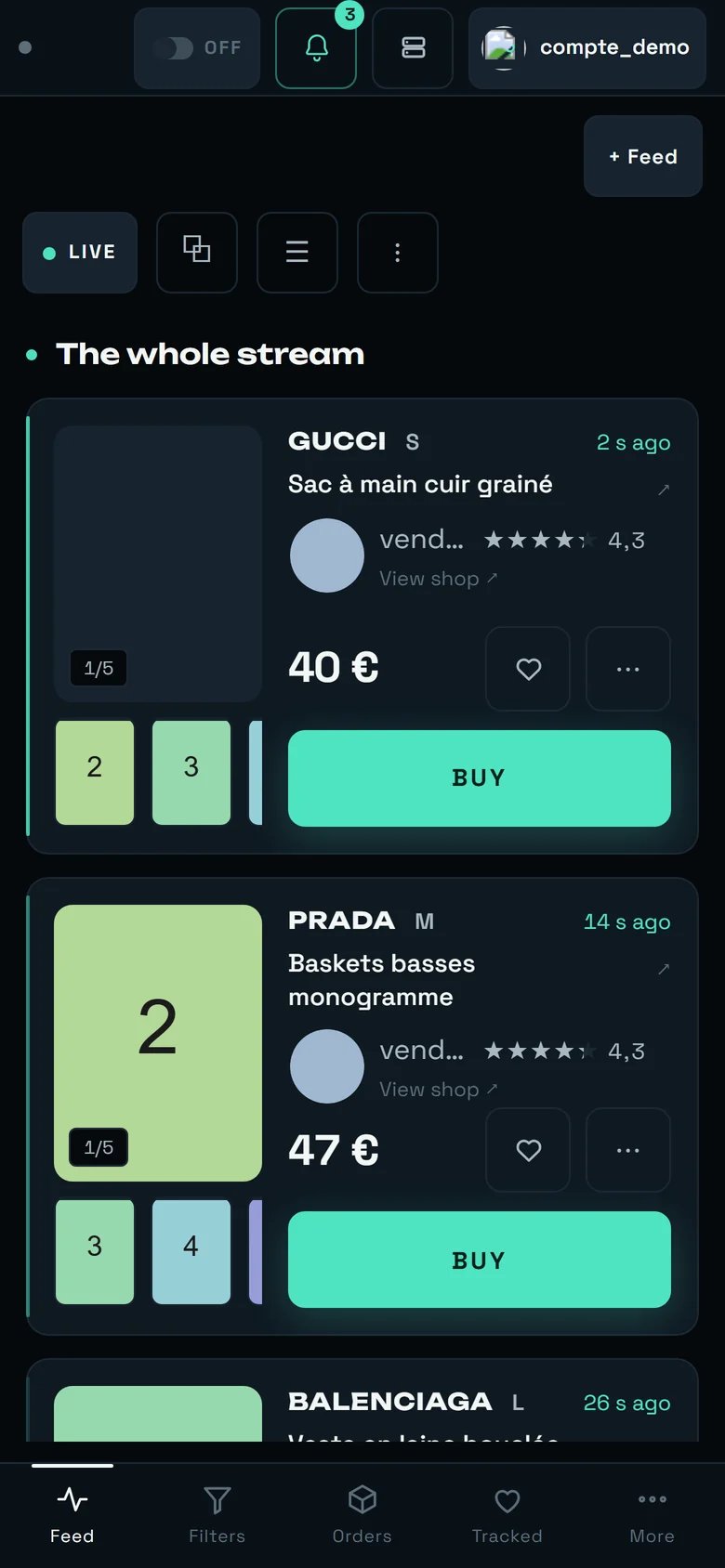 What changes:
* **A single band**, and the **Folder** layout is imposed. Your choice (Wall, Table) stays remembered
and comes back untouched on a large screen.
* **No layout selector**, and **no rate figure** — there is not enough room.
* **LIVE**, **⧉**, **☰** and **⋮** all stay within thumb reach.
* Settings go through **☰**, recent purchases through **⋮**.
* At the bottom: **Feed · Filters · Purchases · Watched · More**.
* **BUY** takes the full width, under the photos — the one geometry where there is no risk of hitting
the wrong target.
An iPad in portrait (744 to 834 px wide) gets the phone layout. That is decided on width alone, and it
is owned.
***
## What this screen does not do
Said plainly, so you do not go looking for it:
* **No listing publication date is shown.** The time you read ("2 s ago") is the moment **REGA**
detected the listing. A publication date does not exist reliably anywhere in our data: relistings
pollute the timestamps.
* **The detail page's description is a 400-character extract**, taken at the moment of detection. It
can legitimately be missing — the page then says so: "This listing has no description, or it was not
there yet at the moment of detection." — and points to "the listing ↗".
* **No bank card form**, and there never will be: the number is encrypted by the payment provider
inside Vinted's own browser page. The address is changed in **Accounts**.
* **200 cards maximum** are kept on screen. Beyond that the oldest leave: the full history lives in
**Orders**.
* **"RECENT PURCHASES" is not a history**: 12 lines, current session. A line recovered from an earlier
session offers no "RETRY".
* **\~5% of listings will never have a photo.** It is not slow loading: "it arrives about a second
after detection, and 5% never have one."
* **Cap per item and max purchases / hour do not follow you from one machine to another.**
***
## Going further
This is where automatic buying is armed, filter by filter, and where the only cap that counts is
set.
Who pays, with which address and which card — and carrier preparation.
The full history, the verification queue, and where to check an unknown outcome.
The purchase ceiling, the automatic pick-up point, and bank validation notifications.
What changes:
* **A single band**, and the **Folder** layout is imposed. Your choice (Wall, Table) stays remembered
and comes back untouched on a large screen.
* **No layout selector**, and **no rate figure** — there is not enough room.
* **LIVE**, **⧉**, **☰** and **⋮** all stay within thumb reach.
* Settings go through **☰**, recent purchases through **⋮**.
* At the bottom: **Feed · Filters · Purchases · Watched · More**.
* **BUY** takes the full width, under the photos — the one geometry where there is no risk of hitting
the wrong target.
An iPad in portrait (744 to 834 px wide) gets the phone layout. That is decided on width alone, and it
is owned.
***
## What this screen does not do
Said plainly, so you do not go looking for it:
* **No listing publication date is shown.** The time you read ("2 s ago") is the moment **REGA**
detected the listing. A publication date does not exist reliably anywhere in our data: relistings
pollute the timestamps.
* **The detail page's description is a 400-character extract**, taken at the moment of detection. It
can legitimately be missing — the page then says so: "This listing has no description, or it was not
there yet at the moment of detection." — and points to "the listing ↗".
* **No bank card form**, and there never will be: the number is encrypted by the payment provider
inside Vinted's own browser page. The address is changed in **Accounts**.
* **200 cards maximum** are kept on screen. Beyond that the oldest leave: the full history lives in
**Orders**.
* **"RECENT PURCHASES" is not a history**: 12 lines, current session. A line recovered from an earlier
session offers no "RETRY".
* **\~5% of listings will never have a photo.** It is not slow loading: "it arrives about a second
after detection, and 5% never have one."
* **Cap per item and max purchases / hour do not follow you from one machine to another.**
***
## Going further
This is where automatic buying is armed, filter by filter, and where the only cap that counts is
set.
Who pays, with which address and which card — and carrier preparation.
The full history, the verification queue, and where to check an unknown outcome.
The purchase ceiling, the automatic pick-up point, and bank validation notifications.