Set what rega does without you — how far it buys, which pick-up point it chooses, what it tells you, what it erases — and manage your own access.
This is the screen where you set what rega does without you — how much it buys for, which pick-up point it chooses, what it writes to the seller, what it erases on its own — and where you manage your own access: password, two-step verification, subscription, invoices, export and account deletion.
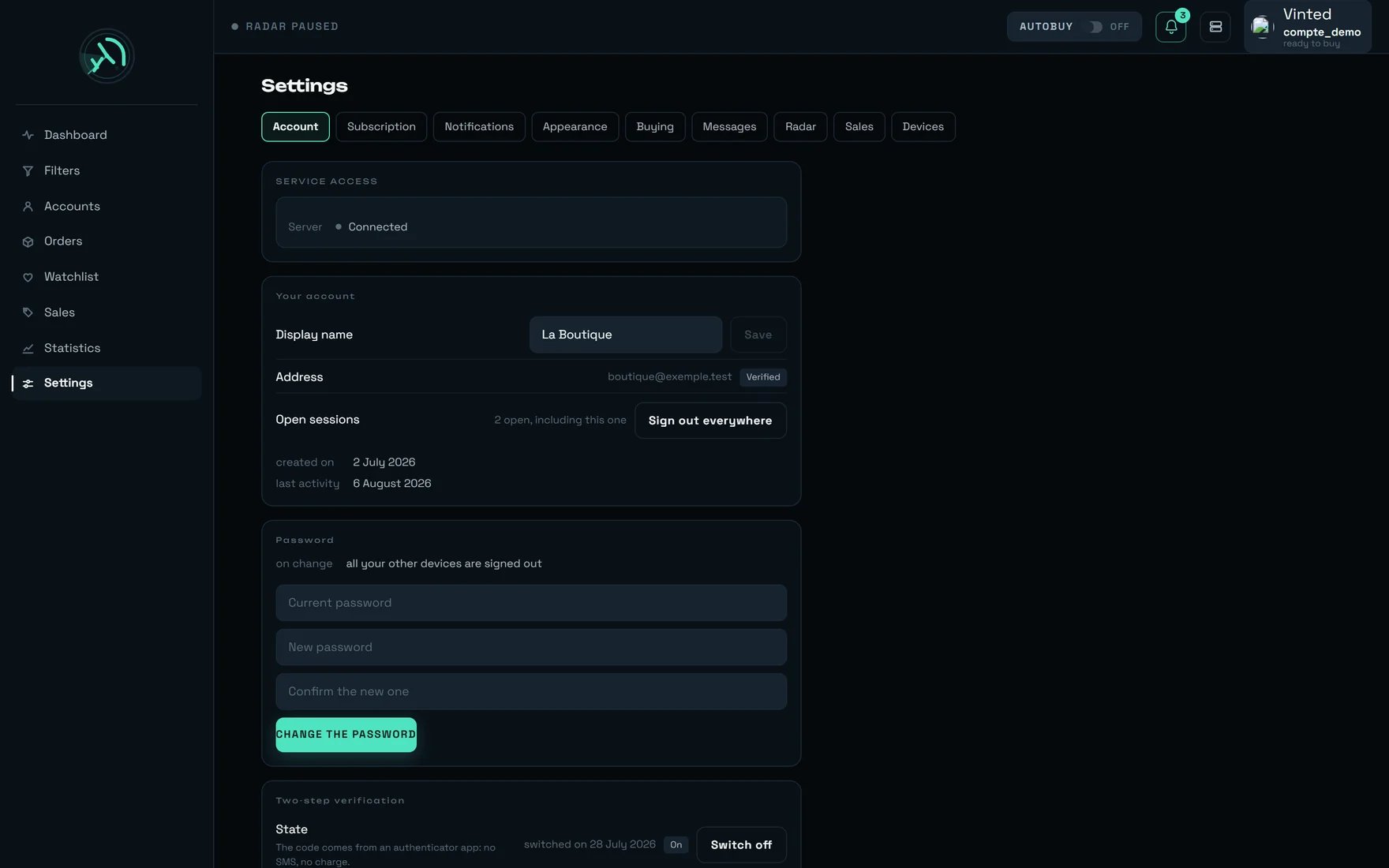
The Settings screen, “Account” tab, on a populated account.
Three well-spent minutes. If you only set one thing today, go to the Buying tab and check that “Automatic pick-up point” is switched on. It is the only setting on this screen that, when off, makes a purchase fail.
The paying account — here compte_demo, marked “ready to buy”
Always says which Vinted account will pay for the next purchase. Its tooltip: “compte_demo will pay for the next purchase — ready to buy.”
2
The bell
Your notifications. The number is how many are unread — here “3 unread notifications”.
3
Administration
REGA staff only — this button does not appear on your account.
4
The AUTOBUY pill
Automatic buying. In this capture, OFF: “Automatic buying disarmed”.
5
The rega logo
Takes you back to the home screen.
6
Account tab
Service access, your details, password, two-step verification, sign-in methods, your data.
7
Subscription tab
Your plan, its due date, your billing.
8
Notifications tab
What rega tells you about, and on which devices.
9
Appearance tab
The language, then six display settings.
10
Buying tab
The ceiling, the pick-up point, the carrier. The tab that costs money.
11
Messages tab
What rega writes to the seller on your behalf.
12
Radar tab
The radar’s state and two settings.
Markers 1, 2, 4 and 5 are not specific to Settings: they are the landmarks you find at the top of every rega screen. Markers 6 to 12 cover the first seven tabs; the last two, Sales and Devices, are visible to their right in the capture, without a marker — there are nine tabs in all.
In this capture the demo account already carries everything you will see on yours: the server “Connected”, a display name (“La Boutique”), a “Verified” address, “2 open, including this one” on the open sessions, and two-step verification “switched on 28 July 2026”.
Three natures of setting — the only model to remember
Every switch looks alike, but they do not live in the same place. That explains nearly every surprise on this screen.
On this device
Theme, density, animations, text size, contrast, accent, and switching on this browser’s alerts. Immediate effect, nothing to wait for — and nothing follows you to your other screens.
On your account
The language, the notifications, the messages to the seller, the delays in the Sales tab, your password. You find them again wherever you sign in.
At rega
The Buying tab, the Radar tab, “Remember the connection”. Every change goes to rega, and can come back if it is not kept.
This device, the bank reminder, the twenty-four alert types
Your account
Appearance
The language (your account) + theme, density, animations, text, contrast, accent
This device — except the language
Buying
Ceiling, pick-up point, carrier, upkeep
At rega
Messages
What rega writes to the seller
Your account
Radar
Start-up, translated descriptions
At rega
Sales
Automatic archiving and deletion
Your account
Devices
This device, your Vinted accounts, “Remember the connection”
At rega
Switching tabs re-reads the tab you open and throws away the one you leave. A saved setting is safe; text typed and not saved is not. That is the trap of the Messages tab, whose “Save” button stays inactive until something changes — and is therefore easy to forget.
Do not touch “Automatic pick-up point”. It is on out of the box, and the screen says so plainly: “rega chooses the collection point during the purchase. Turned off, the purchase fails for want of a pick-up point — leave it on.”Turned off, the purchase does not pause and asks you nothing: it fails, with “No pick-up point could be selected for this order.”, and it fails after the item has been reserved. Faced with a purchase that fails for no visible reason, this is the first box to check.
Setting
What the screen says
Out of the box
Purchase ceiling
“Above this amount, the purchase is refused and you are told. Empty = no ceiling.” Applies to all purchases, manual and automatic alike. Once set, it also refuses an item whose price cannot be read.
empty — “none”
Two confirmations before cancelling
“The CANCEL button sits where you have just clicked to buy — without this second step, a finger coming back down cancels. A confirmation is asked for in every case.”
on
Automatic pick-up point
“rega chooses the collection point during the purchase. Turned off, the purchase fails for want of a pick-up point — leave it on.”
on
Which point(if the previous one is on)
“The rule applied when several points fit.” Three choices: Nearest · Usual (“The one Vinted puts forward for you”) · Cheapest.
Nearest
Preferred carrier at the pick-up point
“Picks this carrier first when the seller offers it. Otherwise the nearest point is kept — a preference never makes a purchase fail.” Vinted Go · Mondial Relay · Chronopost · DPD · “Other (free code)…”
“No preference — the nearest”
Keep pick-up points ready
“The collection point is already in place when you buy: every purchase is faster.”
off
How often(if the previous one is on)
“…tightening it brings nothing.” From 1 to 24 h: leave it where it is.
1 h
Every value that is kept is announced at the bottom of the screen: Purchase ceiling — {montant} €, “Pick-up point — nearest”, Preferred carrier — {nom}, Upkeep — every {h} h. Clearing a ceiling gives “Purchase ceiling removed”.
Input fields are validated when you click away or press Enter, never as you type: otherwise a ceiling being typed would be worth 1, then 12, then 120, and a purchase would be refused between two keystrokes. Esc puts the previous value back.
It must be on. It is the only setting on this screen whose switching off makes a purchase fail, and it fails late — after the item has been reserved.
2
Choose “Which point”
Nearest suits almost everyone. “Cheapest” only means something if your sellers offer several carriers; “Usual” only has an effect after you have ranked pick-up points on the Accounts screen.
3
Leave “Preferred carrier” on “No preference — the nearest”
A preference never makes a purchase fail, but it can cost: “A carrier other than the default one may cost a little more.” Only set one if a carrier genuinely causes you collection trouble.
4
Set your real ceilings elsewhere — in the filters
Open the Filters screen, then each armed filter, and fill in its “€ max” field. That is the ceiling that follows your account and bounds automatic buying.
5
Check the Notifications tab in the same pass
A purchase that needs bank confirmation calls you by notification. If no device is switched on, nobody answers — and the confirmation expires.
There are three of them, in three different places. They do not protect the same purchases — this is the most expensive confusion in the product.
Purchase ceiling
Settings → BUYING. The widest: every purchase, manual and automatic, on every machine. Empty out of the box.
Cap per item
AUTOBUY panel on the dashboard. Worth €120 out of the box, and remembered in this browser only — another machine, a private window, and it is back to €120.
A filter's “€ max”
The filter’s dialog, Filters screen. Bounds automatic buying for that filter only — and this is the one to rely on.
Count on roughly €4 above the price on show, every time (measured: +€4.09) — the charge adds delivery and buyer protection. And all three ceilings compare the ITEM price, never the total: a ceiling set at €100 therefore lets through a purchase charged at around €104. Set your ceilings to the item price you accept, not to your total budget.
Automatic buying runs on our servers. The AUTOBUY pill arms the server: buying survives closing the tab, closing the browser, and shutting the machine down. The only thing that stops it is disarming it. The dashboard’s “Where automatic buying runs” line — “on our servers — closing the tab does not stop it” — states that fact; it is not a switch you set.
Two messages exist, and they do not mean the same thing.
What you read
What happened
“Setting not saved — …”
Nothing was written. The old value comes back on screen.
“Value refused — setting unchanged”
rega answered, but did not keep what you entered.
On a shop account, “Purchase ceiling”, “Keep pick-up points ready” and “How often” come back with “Setting not saved — …”: those three are set by the service, not from your account. The same goes for “Start with the server” in the Radar tab.Treat them as indicators, not as commands. The ceiling that belongs to you is each filter’s “€ max”.
If rega did not answer at all, the whole tab is replaced by a sentence — and no switch is shown at an invented value: “Settings unreadable — the rega server is not answering. Nothing has been changed.”
“PREPARE THIS CARRIER” is not this setting
On the Accounts screen, the “PREPARE THIS CARRIER” button makes a real purchase of a few euros, once per account and per carrier.It is optional: without it the purchase still goes through — simply ~1.3 s slower on the items shipped by that carrier. And the gain is not additive: it is the seller who chooses the carrier, so preparing several carriers widens the share of your purchases that gain that time, never the time gained.Not to be confused with “Keep pick-up points ready”, which is a setting on this tab, off out of the box.
Why “Usual” often changes nothing
The tooltip promises “The one Vinted puts forward for you”. Yet in practice no pick-up point carries that recommendation: the ranking used is yours, the one you set in Accounts → Pick-up points.As long as you have ranked nothing, “Usual” behaves exactly like “Nearest”. And a point you have ranked by hand comes before this setting, whatever it says — so if “Cheapest” never gives you the cheapest, empty that ranking first.
Subtitle: “What rega tells you about, and on which devices.”
1
Switch on this device
The “Switch on for this device” button. It chains the browser’s permission and then the registration, and only becomes “Device switched on ✓” once the registration has really gone through. If it becomes “Permission refused”, the note says where to fix it: “The refusal comes from the browser: allow alerts in its site settings.” If it stays on “Switch on for this device”, the message that appears says why — “Alerts allowed. This device cannot receive them with the app closed.”, “Device not registered on the server — try again.”, or, from the server, “This device already receives the notifications of another REGA workspace. Remove it from that workspace before adding it here.” A button left on “Switch on” is not a device that will ring.
2
Send a test
“Send a test” takes exactly the same path as a purchase alert, with no shortcut. On success: “Test notification sent — look at the bell.” A test that never arrives is a problem you discover before a purchase, not during one.
3
Set the bank confirmation reminder
Five choices: None · 2 min · 5 min · 10 min · 15 min. “ONE second notification, this long after the purchase, and only if the confirmation still has not gone through and you have not stopped the reminder. Never repeated.”
4
Choose your types
Six groups — Purchases · Detections · Watchlist · Sales · Reshipping · System — and one switch per type. A setting that does not go through gives “Setting not saved — the server did not answer.”
Twenty-four types are served, and only one ships switched off.
Group
Types
Out of the box
Purchases
Purchase completed (manual) · Bank confirmation required · Purchase failed · Purchase completed (autobuy) · Bank confirmation required (autobuy) · Purchase failed (autobuy) · Purchase completed from the verification queue · Bank confirmation reminder
all on
Detections
Detection on a followed filter
on
Watchlist
Price drop · Item sold or withdrawn · Item available again (never sent today)
all on
Sales
New sale on a followed filter
off
Reshipping
Quality check awaiting your approval · Item approved · Shipping quote ready to choose · Reshipping payment received · Parcel shipped or delivered · Dispute — opened, deadline, outcome · Free storage ending, abandonment
all on
System
Test · System alert · Subscription (trial end, unpaid, data deletion) · New tailored request
all on
The Reshipping group carries seven switches, all on when you arrive, and its own warning: “Two of these open a deadline: once it passes, the decision is made without you.” Everything else about reshipping reaches you by letter only, and deliberately so.
“New sale on a followed filter” is the only type that ships switched off. If you follow filters in order to watch sales, switch it on — otherwise the silence is normal, not a fault.
The “Stop the reminder” button carried by every confirmation notification cancels nothing. The screen says so: “it turns that reminder off. ⚠️ It does not undo the payment — if your bank confirms later, the money leaves your account.” Read it as “stop reminding me”, never as “cancel the purchase”.
The Detections group carries the help that explains the most silences: “Only fires for the filters that asked for it — the switch lives on each filter.” There is no “notify every detection” switch here: it is in each filter’s dialog, on the Filters screen.
Keep “Bank confirmation required” and “Bank confirmation required (autobuy)” on, and switch on at least one phone. A bank confirmation waits for a human hand; without a notification it expires, and the purchase is lost — with no charge, but lost.
Two delays, three steps each, served by rega: 24 h · 48 h · 72 h. Out of the box: 48 / 48.
Setting
What the screen says
Archive automatically
“After this delay, the sale moves to the archive — still readable in the Archived tab.”
Delete the archived ones
“After this delay, the archived sale is permanently erased: no longer readable, and removed from your statistics.”
What you will keep
The calculated sentence: Your sales will stay readable for {h} hours (about {j} days) after they leave Vinted, then be permanently erased.
At the next pass
A real dry run: {n} sales will be archived, {sup} will be permanently erased. or “Nothing to file away or erase for now.”
The two windows follow each other: it is their sum that counts. At 48 / 48, your readable sales history never goes beyond ~4 days — and neither do your cumulative statistics, since an erased sale leaves them.Before dropping to 24 / 24, read the “At the next pass” line: it is the only place in the product where you can see an automatic deletion before it happens.
There is no “never” option, and that is deliberate: an unlimited option would make the deletion guarantee false for everyone. If a value does not land on a step, rega moves it to the nearest step instead of refusing — and the screen shows the value rega kept, never yours. While waiting for its answer, it shows “State unavailable at the moment” rather than a number.
Small blocks on parallel rails, each with its own mark. A settings screen holds together the same way: one track per decision, and a position that is yours.
Six panels stacked, from the most everyday to the most final.
SERVICE ACCESS
A single read-only line: “Server” is “Connected”, “Connecting…” or “Unreachable”.When it says “Unreachable”, a subtitle appears under the screen title: “rega is not answering — appearance and alert settings can still be changed, they live on this device.” That is useful information, not a fault to report: half of this screen keeps working.
Your account — name, address, open sessions
Display name — field + “Save”, inactive until something changes. When empty, the line says “not chosen yet — you appear under your address”. On failure: “The name could not be saved.” rega trims spaces and keeps at most 60 characters: the name may come back slightly different from what you typed.
Address — your e-mail, with the “Verified” chip or the “Verify the address” button. The button asks for no address: it sends the link to yours, and to yours alone. On failure: “Sending not possible at the moment.”
Open sessions — {n} open, including this one, or “Not measured”. “Not measured” is not “zero”: it is rega saying it does not know, rather than showing a false number on the very line that serves to spot an unknown session.
Sign out everywhere — opens “Close every session?”: “Every signed-in device will be signed out, including this one. Nothing rega has collected is touched, and your sign-in methods stay in place.” Then “All your connections have been closed.” and the page reloads: that is normal, you have just closed your own.
At the bottom, two facts: “created on” and “last activity”. They disappear if rega does not know them.
Password
The fact is shown before the click: “on change → all your other devices are signed out”. Three fields: “Current password”, “New password”, “Confirm the new one”.The refusals, in order:
an empty field → “Enter your current password and the new one.”
the confirmation does not match → “The two new passwords are not the same.” — your browser sees this; rega never receives the confirmation
the current password is wrong → “Change refused.”
the new one is too weak → rega explains why, for instance that it must be at least 10 characters
No composition rules: no capital, no digit, no special character. A phrase of several words beats a complicated word. On success — “Password changed.” — the three fields are emptied: a password left on screen is readable by anyone walking past.
Two-step verification
“The code comes from an authenticator app: no SMS, no charge.” While it is not armed, the state says: “not switched on — your password alone protects your workspace”. Once armed, it says switched on {date}.The second step is not a formality: “Enter the code showing now. Without this check, a bad scan would lock you out of your workspace at the next sign-in.” It asks for your password as well, in a “Your password” field placed before the six digits: a wrong or empty password answers “The password is incorrect.”, a wrong code “That code does not match. Check the time on your phone, then try again with the code showing at that moment.” If your app does not scan, the key is written just under the QR code: “Your app does not scan? Enter this key by hand:”.Then the ten codes: “They will never be shown again. Each works once, in place of the six-digit code.” Three buttons — copy, “Download”, “I have kept them”. The downloaded file repeats the instruction: “Keep them away from your phone: they are for the day you no longer have it.”After that, the “Recovery codes” line shows {n} of {total} still valid, or “none left — losing your phone locks you out of your workspace”.Regenerate gives you ten new ones: “You will get ten new ones, shown once only. The old ones stop working immediately — including any you have printed.” Switch off is just as blunt: “Your password will become the only thing protecting your workspace — your Vinted accounts included. Your recovery codes will be destroyed.” So all three gestures — switching on, regenerating, switching off — ask for your password.
Sign-in methods — password and linked accounts
One “Password” line (“Active”, or “no password set”), then one line per service offered by your installation:
What you see
What it means
“Link”
The service is offered, this account is not linked yet
“Remove” with linked on {date}
The account is linked, you can sign in with it
“Unavailable”
“not offered on this installation” — clicking explains, it breaks nothing
“Link” does not open the service straight away. A window titled “Link ?” asks for your password first — “A linked account lets you sign in to rega without a password, and it keeps working after a password change. Your current password is therefore required to add it.” — then “Cancel”, or “Link” (“Opening…” while the service is reached; Enter works too). A wrong or empty password is refused, and that refusal arrives in French only for now: « Votre mot de passe est demandé pour rattacher un compte externe : ce rattachement ouvre une session à lui seul. » Removing, on the other hand, already asked for it.The refusal that matters: “This is your only way of signing in. Add a password or another account before removing this one.” rega decides that refusal, not the screen: you cannot lock yourself out by mistake.And when a linking fails, the most frequent message states the action: “This linking link is no longer valid — it comes from a tab or a page that has already been used. Start again from the “Link” button below rather than reloading or going back.”
Your data — export and deletion
Export my data: “A reusable file: filters, tracked sales, settings, accounts. Passwords are not in it.” On success: “Export saved.”Under the “Actions that cannot be undone” subtitle — set apart by a rule and an indent, with no alarm colour at all, because a permanently red surface stops being read:“Delete my account — erases everything, with no way back”. Two windows that do not say the same thing, on purpose:
“Delete your account?” lists what goes — your filters, tracked sales, watchlist and saved items · your saved marketplace accounts and their credentials · your settings, your notifications and your purchase history in rega · the account itself. Then: “We keep only the accounting records — amounts, dates and billing references — for ten years, as the law requires. They contain none of your usage data.”
“Confirm”: no list any more, just “The deletion is immediate and cannot be undone.”, your password, and “Delete permanently”.
One number dominates the block: “left” then {n} days (or < 1 day). It does not appear if rega does not know it — no invented number.Under it, the strip of facts: the plan, the state (Active · Suspended · Ended · Stopped) and the due date with its nature — “End of trial”, “Next renewal”, “Access until”, “Access stopped on”. The offer is described by rega itself: “standard plan”, {prix} € / month — full.If access is cut, the consequence is written out: “Access stopped. Your data is kept; the service resumes once the account is settled.” And if a deletion is scheduled: Permanent deletion of your filters, tracked sales and history on {date}.Billing distinguishes the absences instead of painting them all as faults:
What you read
What it means
“No billing on this installation — nothing is charged to you, no bank details are asked for.”
Nothing to pay — not a fault
“No payment has ever been asked for this workspace.”
Nothing to pay — not a fault
“No invoice for now.”
Empty — not a fault
“The billing history cannot be read.”
This one is a fault — a “Read again” button appears
Invoice statuses: Paid · Pending · Draft · Cancelled · Unpaid. And if you read “Test mode: these amounts match no real charge.”, none of those amounts has left your account.There is no “Resubscribe” button, and that is a choice: the standard plan is complete, a button would lead to a closed door. For anything about your subscription, write to us.
Appearance — the language, then six display settings
The language stands apart: “This choice follows your account, not this device: your e-mails go out in this language.” The two chips read Français and English — the name of a language is always written in that language, otherwise you cannot recognise it when you are lost in the other one.The other six apply to this device only: “These settings apply to this device only: they do not follow you to your other screens.”
Setting
Options
What the screen says
Theme
Dark · Light · System
On “System”, the line states the real state — “Follows the device — currently dark.” — and follows live if your machine switches
Density
Comfortable · Compact
“Compact tightens the margins: more cards on screen.”
“Smaller shows more listings at once; larger reads from further away.”
Higher contrast
switch
“Lightens secondary text and rules.”
Accent colour
Radar · Amber · Violet · Blue · Pink
“The colour that signals a detection or an action. The colours that carry meaning — success, failure, confirmation expected — do not change.”
No free colour picker: each of the five shades has its variant calibrated to stay readable in both themes. And none of these settings recolours a success or a failure — that is guaranteed, not left to chance.
Automatic messages
“What rega writes to the seller, on your behalf.” Two lists: After a purchase (“Sent to the seller just after payment.”) and After a cancellation (“Sent to the seller when you cancel an order.”).You can write several variants per list: “One variant is picked at random each time.” The variables {titre}, {marque} and {prix} are replaced when sending and are not translated — written any other way, they would no longer be replaced.Buttons: “Add a message”, “Save” (inactive until something changes, with the help “No change to save”), “Restore the default messages” (which answers “These are already the default messages” when there is nothing to do). Saving an empty list erases nothing: “No message: on saving, rega will go back to its default messages.”
Radar
The state, read-only: “Active — the radar is sweeping” · “Stopped” · “State unknown” (rega does not know yet — this is not “stopped”) · “Server unreachable”.Two settings: Start with the server (“The radar restarts after a reboot, without anyone opening the application.”) and Descriptions in French (“The seller’s description is translated into French when an item is opened; otherwise, its original text.”), on out of the box.Then “What the radar looks for → Your filters.”, with an “OPEN” link.And the admission at the bottom of the tab, which avoids the most common misunderstanding: “This setting does not start the radar now.”
Devices
“This device”: System, Browser, Mode (“Installed on the home screen” or “Browser tab”) and Alerts (Allowed · Blocked · Unavailable · Not allowed yet).The admission, plainly stated: “rega does not keep the list of devices that have opened it: no remote session can be closed from here.” To close sessions, use “Sign out everywhere”, Account tab.Then your Vinted accounts, with their nickname and “Connected” / “Disconnected” — never their address. When empty: “No buying account for now.”One setting: Remember the connection — “Avoids a new SMS code each time an account reconnects.” And a “Manage the accounts” link to the Accounts screen.
Grey blocks at the right size — not switches at an invented value. The page does not jump when the data arrives.
Loading, for a long time
The blocks settle down and a sentence appears, with a way to retry. This is the only place in the product where a waiting sentence exists.
Settings unreadable
“Settings unreadable — the rega server is not answering. Nothing has been changed.”
rega is not answering
Under the title: “rega is not answering — appearance and alert settings can still be changed, they live on this device.”
One panel down
The cause, then a “Read again” button — the neighbouring panels stay on screen. For instance “Your subscription cannot be read.”, “Your billing cannot be read.”, “The account details cannot be read.”, “The state of two-step verification cannot be read.”
Empty
“No invoice for now.”, “No buying account for now.” — empty is not a fault, and the screen never confuses the two
Write refused
“Setting not saved — …” or “Value refused — setting unchanged”
Data already on screen is never erased by a failure: if a re-read fails, you keep looking at what rega had served, rather than a panel emptying itself in front of you.
Faced with a purchase that fails for no reason, check “Automatic pick-up point” first. Off, it pauses nothing: it makes the purchase fail, after the item has been reserved.
2 · Your ceilings live in the filters
Open each armed filter and fill in its “€ max”. The dashboard’s “Cap per item” field (€120 out of the box) only lives in this browser; the “Purchase ceiling” here does not belong to you.
3 · Count above the displayed price
The ceilings compare the item price; the charge adds delivery and buyer protection — roughly €4 more, every time (measured: +€4.09). A ceiling at €100 lets through a purchase charged at around €104, so set them to the item price you accept, not to your total budget.
4 · Switch on the sale alerts
“New sale on a followed filter” is the only type that ships off. Without it the silence is normal — many people take it for a fault.
5 · Test right after switching on the device
“Send a test” takes the same path as a purchase alert. Do it on the phone you will have in your pocket, not only on the office computer.
6 · “Usual” is waiting for a ranking
Until you have ranked pick-up points in Accounts, “Usual” behaves like “Nearest”. And a point ranked by hand comes before this setting, whatever it says.
7 · Read “At the next pass” before lowering the delays
It is a real dry run, and the only way to see an automatic deletion before it happens. At 24 / 24 you keep only two days of history — and of statistics.
8 · Save before switching tabs
The panel you leave is thrown away. An automatic message typed and not saved is lost — and the button stays inactive until something changes, which makes it easy to forget.
9 · Keep the ten codes off the phone
They are for the day you no longer have it. Only regenerate them once you have destroyed the old paper: the old ones stop working immediately, printed copies included.
10 · Export before you delete
“Export my data” produces a reusable file, without your passwords. Do it before any account deletion: afterwards there is no way back.
11 · Set the language from the device you use most
It follows your account, and your e-mails go out in that language. If an e-mail arrives in the old language, reopen this tab and set the choice again: the second step of the save may have been missed.
12 · “Remember the connection” is not a personal setting
Changing it does not only change your own screen — leave it as you found it. If a Vinted account suddenly starts asking for an SMS code on every reconnection, look there first.
You tick “Start with the server” and the radar does not start
It is written under the setting: “This setting does not start the radar now.” It says what will happen at the next restart, not now. The radar is started from the feed screen.
Some Buying settings come back on their own
“Purchase ceiling”, “Keep pick-up points ready”, “How often” — and the Radar’s “Start with the server” — are set by the service, not from your account. They are shown, they can be typed into, and they come back with “Setting not saved — …”. Nothing is broken: nothing was written.
A failed name save wipes the whole “Your account” block
The entire panel — password included — is replaced by a fault message, even though the reading itself had succeeded. Nothing is lost: the “Read again” button puts everything back.
“Not measured” is not “0 sessions”
It is rega saying it does not know. Showing “0” on the very line that serves to spot an unknown session would say the opposite of the truth.
“Sign out everywhere” signs YOU out too, and the page reloads
That is deliberate: when you do not know where an unknown session came from, you do not want to keep your own along the way. The window says it in bold — “including this one” — and the reload that follows is normal.
Your display name can come back different from what you typed
rega trims spaces and keeps at most 60 characters. The screen adopts the value it kept, never your input: what you read back is what is actually saved.
After arming two-step verification, wait ~30 seconds
Signing in elsewhere within the following half minute can fail: the code you have just used cannot be used again. Wait for your app to show the next one. This is not a fault, it is the protection against replay.
The language change applies here at once, but may not reach rega
The screen switches immediately, and the save goes out afterwards without being waited for. If it fails, it costs exactly one thing, but a real one: the next e-mail goes out in the old language.
“Restore the default messages” erases nothing, and neither does an empty list
Saving an empty list restores rega’s original messages, as the line says: “No message: on saving, rega will go back to its default messages.” There is no state in which rega writes nothing to the seller.
“PREPARE THIS CARRIER” is a real purchase — and it is optional
On the Accounts screen, that button really buys an item of a few euros, once per account and per carrier. Without it the purchase still goes through — simply ~1.3 s slower on the items shipped by that carrier. And the gain is not additive: it is the seller who chooses the carrier, so preparing several widens the share of your purchases that gain that time, never the time gained.
An interrupted payment is never replayed
If the connection drops at the moment of paying, the outcome is unknown — replaying would risk a double charge. rega does not replay. Go and check in Orders rather than clicking again.
The bank confirmation reminder comes once, and never twice
“ONE second notification, this long after the purchase, and only if the confirmation still has not gone through and you have not stopped the reminder. Never repeated.” So silence after that reminder does not mean all is well: go and look at the Orders screen.
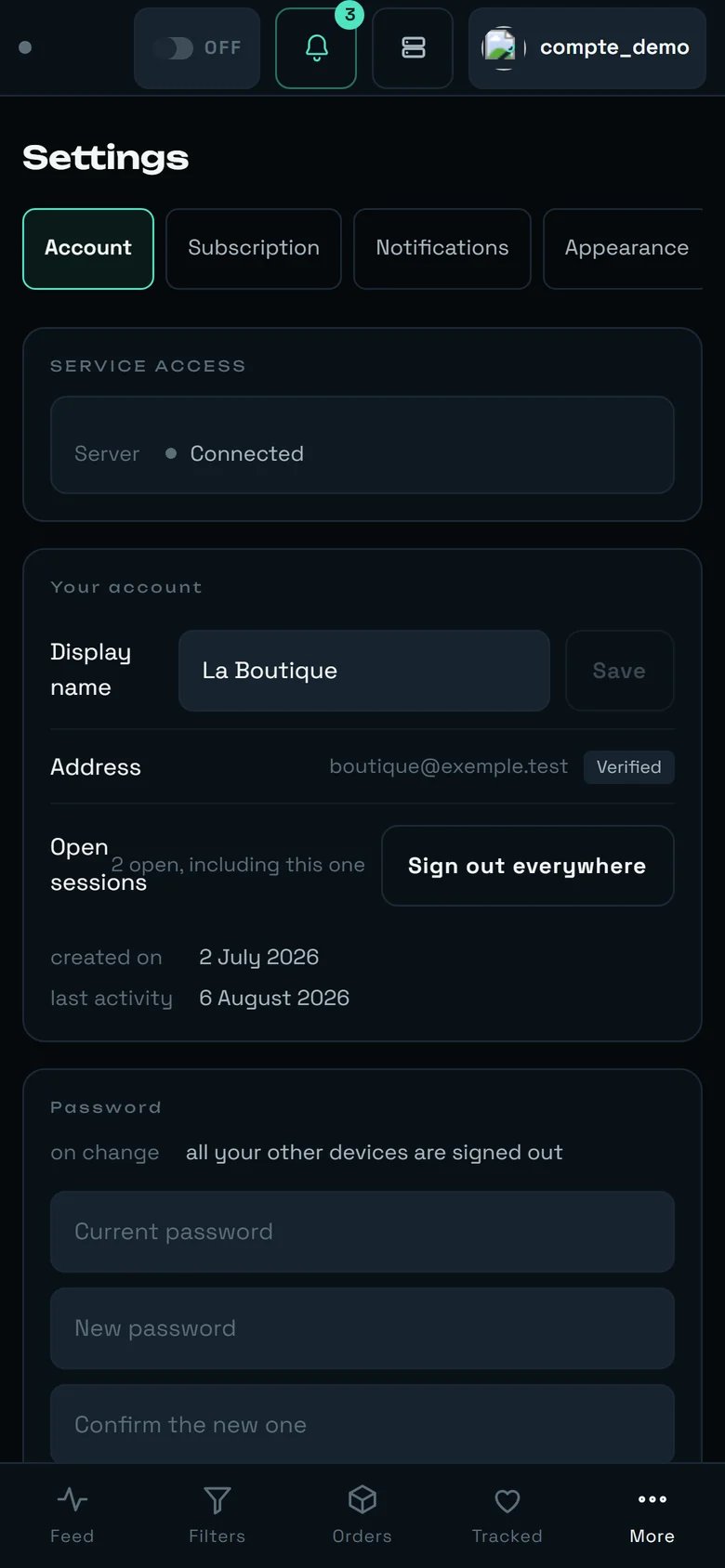
Settings on a phone: the tab bar scrolls under your thumb, and the first setting stays above the fold.
The tab bar scrolls horizontally under your thumb: it is deliberately cut off on the right after “Appearance”. A stack of nine tabs would push the first setting below the fold.
The content does not change: the settings panel is already width-limited on a large screen, so it is the same column, narrower. Long labels simply wrap onto two lines.
The bottom bar replaces the side bar: Feed · Filters · Orders · Tracked · More — Settings sits under “More”.
The header landmarks stay: the AUTOBUY pill, the bell and its counter, the paying account.
The phone is where the most useful thing on this screen gets done: “Switch on for this device”, in the Notifications tab. On iPhone, add rega to the home screen first — the screen tells you: “On iPhone, alerts require adding rega to the home screen (Share → Add to Home Screen), then opening it from there.”
No device list, no targeted remote sign-out. The screen says it: “rega does not keep the list of devices that have opened it: no remote session can be closed from here.” The only action available is “Sign out everywhere”, which closes everything, you included.
Four settings are indicators, not commands on a shop account: “Purchase ceiling”, “Keep pick-up points ready”, “How often”, “Start with the server”.
No “Resubscribe” button. That is a choice: the standard plan is complete, a button would lead to a closed door.
The retention steps are 24 / 48 / 72 h. There is no “1 week”, and no “never”.
The bell keeps at most 400 notifications: beyond that, the oldest disappear. What really matters lives in Orders and in Sales.
The refusal message for service-reserved settings arrives in French, even when your interface is in English. So does the refusal of a linking attempted with a wrong password — see “Sign-in methods”.
The small screen has only been measured at standard phone width. The in-between widths — a tablet in portrait in particular — have not been checked yet.