Prices as of the last check, never live — last checked {quand}. A price shown here is at most 15 minutes old. That line never folds away, on purpose: a watch screen that hides the date of its last check makes you believe its prices are from right now.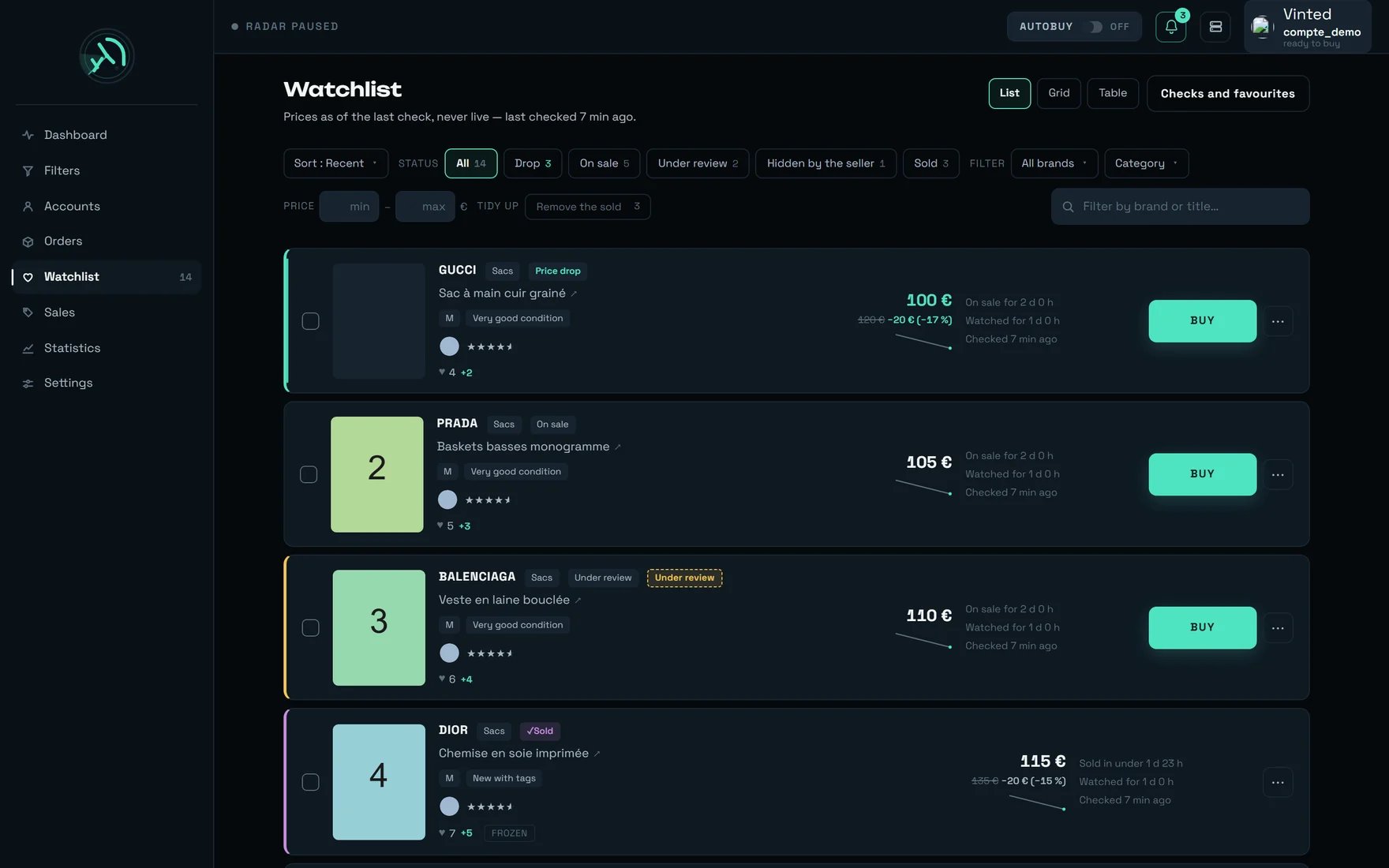
The watchlist in List layout: one price drop, one item on sale, one under review, one sold.
What you are looking at
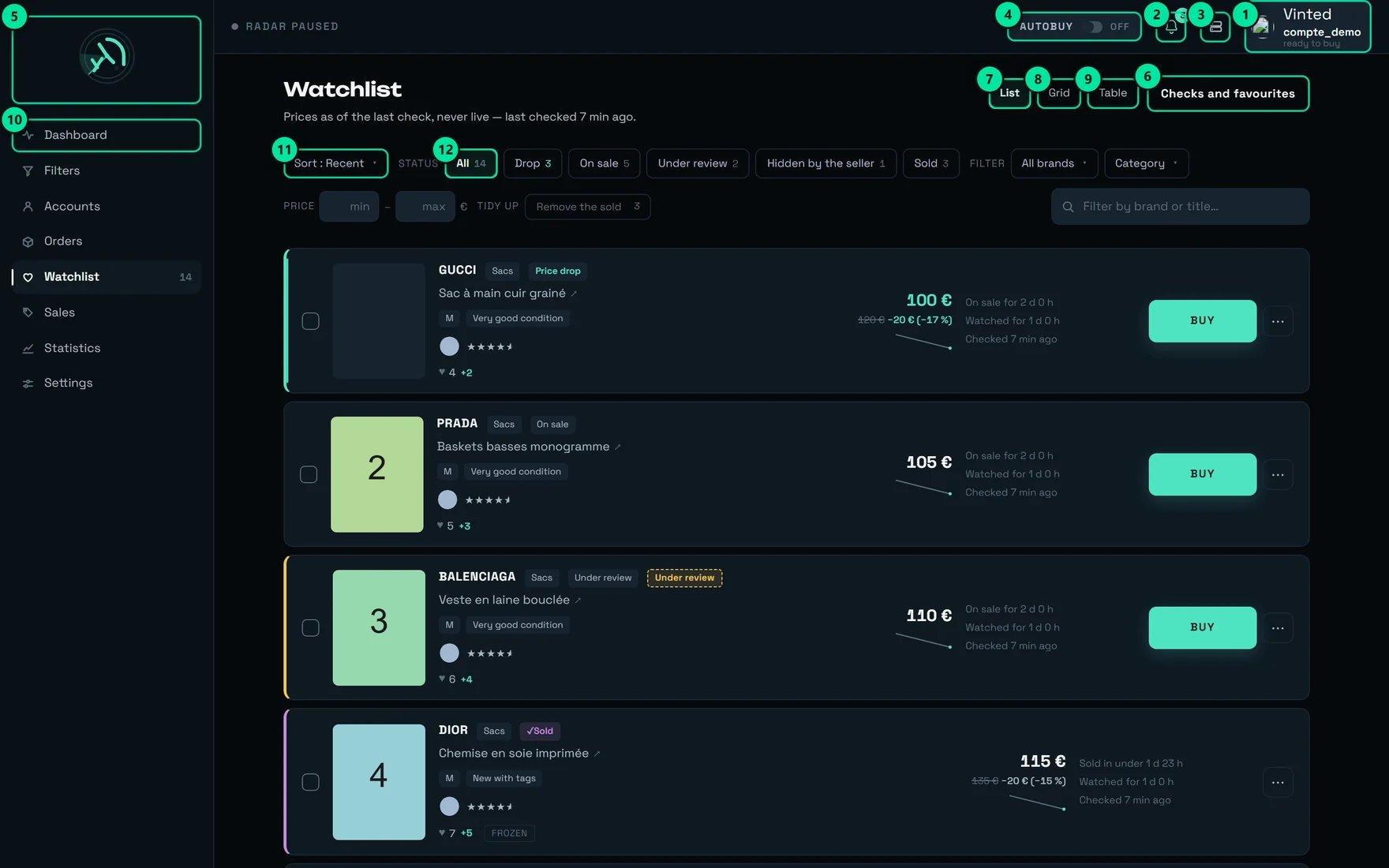
The screen's twelve controls, numbered.
The life of a watched item
This is the heart of the screen: what REGA allows itself to say about an item, and on what proof.Under review and Hidden by the seller look alike and are opposites. Both take the listing out of the catalogue, and one thing alone separates them: Vinted still allows the transaction on a Hidden by the seller, and not on an Under review. A Hidden by the seller can be bought right away through its link; an Under review gets queued.Reading a row in three seconds
↗). Clicking the title opens Vinted; clicking the card opens the details inside REGA.
Track an item by its link
At the top of the body, above the list, a block titled “Track an item by its link”: one field — its placeholder shows the shape of a Vinted or Vestiaire Collective address — and a “Track” button, which reads “Checking…” while it runs. Enter validates too, and the button is never greyed out.- On success: “Item added to the watchlist.” — the field empties, and the list is read again.
- Two refusals come from the server, word for word: “This link isn’t recognised. Paste the address of a Vinted or Vestiaire Collective item, for example https://www.vinted.co.uk/items/…” and “This item no longer exists, or its address is wrong. Check the link — it may have been sold or removed.” With no sentence from the server: “Paste the address of a Vinted or Vestiaire Collective item.”
The Checks and favourites drawer
The button (marker 6) opens two panels, folded by default.
The CHECK banner
It carries, in order: the state (Running…, No check yet, or Last checked {quand}), the load (every item is up to date or {n} items waiting), the rhythm (one check every {duree}), and the Check now button — help: Check the price and availability of the watched items.
What can refuse “Check now”
What can refuse “Check now”
- A check is already running:
Check skipped — a check is already running - Everything was checked less than a minute ago:
Check skipped — everything was checked less than a minute ago
What it answers when it works
What it answers when it works
Checked — {n} items{suffixe}, where the suffix adds up what changed: {n} price drops, {n} listings vanished, {n} with no answer.If you read “checks slowed ×N”
If you read “checks slowed ×N”
checks slowed ×{facteur} and {n} behind, and explains itself: more items are under watch than can be kept at the usual rhythm. None is lost, they are served more slowly, and the banner names the real interval.In plain terms: your prices are N × 15 min behind, nothing is lost, and the slowdown is uniform — no item is left aside in favour of another.The VINTED FAVOURITES panel
Open the drawer
Checks and favourites button, to the right of the title.Pick the account
Connect an account to import its Vinted favourites into the watchlist.Click “Sync”
Syncing…. Note shown: Items already watched are not duplicated.Read the report
{n} favourites imported, or No new favourite — they were already being watched, or No favourite to import. On failure: Import failed — {raison} (fallback: the server did not answer).Recent sort.The toolbar
It stays stuck to the top while you scroll.- Sort
- Status
- Filter and price
- Tidy up and search
Sort by, ten entries. The trigger shows Sort : {label}.Buying from the watchlist
Click BUY on the row
Queue it instead of Buy if the item is being reviewed by Vinted — and the window title changes from Confirm the purchase to Schedule the purchase.Read the confirmation window
The purchase goes out immediately. It is real money, with no safety cap.Queued: This item is being reviewed by Vinted. The purchase will be queued and will start automatically as soon as it is reviewed.Check the payer
Next payer announced: {pseudo} — the account actually used is the one the server assigns at the moment of firing. Queued: With the account {pseudo} — that one really is the account that will pay, hours later if need be.Confirm
AUTOBUY pill (marker 4) arms the server; it survives closing the tab, closing the browser, shutting the machine down. The only gesture that stops it is disarming it.The three ceilings, from widest to narrowest
The three ceilings, from widest to narrowest
Purchase ceiling— Settings → BUYING. Applies to every purchase, manual and automatic, on every machine. Empty by default. Once set, it also refuses an item whose price is unreadable.Cap per item— the AUTOBUY panel on the dashboard. Worth 120 € out of the box, and remembered in this browser only.- A filter’s cap — bounds only the automatic buying of that one filter.
The pick-up point — check it once and for all
The pick-up point — check it once and for all
Automatic pick-up point, in Settings, is on out of the box. Switched off, the purchase fails: No pick-up point could be selected for this order. Nothing asks you anything at the moment of paying.Not to be confused with PREPARE THIS CARRIER, in the Accounts screen: that is a real purchase of a few euros, once per account and per carrier, and it is optional — without it the purchase still goes through, about 1.3 s slower. The gain does not add up: it is the seller who picks the carrier, so preparing several widens the share of your purchases that gain that time, never the time gained.If the connection drops while paying
If the connection drops while paying
A cube held inside a ring. A watched item is held the same way: kept within reach, re-read at every check, and yours only at the moment you decide it.
Making an offer
The window opens at the floor, at −40% of the current price, slider included.- Permanent summary:
{montant} will be offered for {article} with the account {pseudo}. The seller receives the offer immediately, and accepting it closes the sale at that price. - The floor line:
Minimum offer {montant} — Vinted refuses below −40%. - The account is announced as
account set by the buying scope — changeable for this offer, with aChangebutton:Change the account that will send this offer. - The
Send {montant}button sends on the first click: there is no second confirmation.
What blocks the offer, before sending
What blocks the offer, before sending
This item's price has not been checked yet — the offer floor cannot be worked out.Seller unknown for now: it arrives at the next enriched check, and the offer needs it.No account can make an offer — set this in Accounts.
What Vinted can refuse, after sending
What Vinted can refuse, after sending
Offer too low — minimum {plancher} €.— the window then raises your entry to the floor it returned.Listed price missing — reopen the item then try again.Too many offers in a row — wait a moment before trying again.Item not open to offers yet — try again in a few seconds.
A batch of offers
Tick several items: the selection bar appears inside the toolbar, withSelect all, Deselect all, Offer on {n} and Delete the selection.
The confirmation is explicit: Each offer goes out at the floor Vinted accepts (−40%) of the item's current price, one every 5 seconds — that is about {durée}. Beyond twenty items: Your selection contains {n}: only the first 20 will receive an offer.
While sending, the button counts (Offers… {fait}/{total}) and Stop interrupts the batch.
Three shop routines
- Hunting price drops
- Knowing what sells fast
- A wave of offers without being stopped
- The weekly tidy-up
Filter on the “Drop” chip
Sort by “Drop”
The biggest price drop first — the top of the list is your margin.Set your budget in PRICE max
Decide row by row
BUY if the price suits you as it is, Make an offer otherwise. A drop shown here is at most 15 minutes old: that is what makes it usable.Buy, offer, or wait?
The screen’s states
status “X”, brand “X”, category “X”, price between {min} and {max} €, price above {min} €, price below {max} €, search “X”.
Our advice
Judge selling speed on “Sold”, never on “Withdrawn”
Withdrawn. To know whether a model sells fast: sort by Recently sold and count only the Sold chips.Queue the ambers, do not discard them
Under review item is not lost, and it is not buyable either: Vinted has taken the listing out of the catalogue and does not allow the transaction while it checks it. Click BUY anyway — the window becomes Schedule the purchase, the purchase fires on its own at approval, and the queue gives up after 96 h. Do not buy over it in the meantime. The one you can buy right away is the other status: Hidden by the seller.A “Hidden by the seller” can be bought right away
A drop shown here is at most 15 minutes old
Check now: a 60 s floor per item applies to the manual button too.Change account for a batch of offers
Change picks the account for this offer only: split your waves across several accounts, and keep one at rest to buy with.Import your favourites instead of re-clicking 200 hearts
Sync goes up to 10,000 favourites and respects Vinted’s order. Then set the periodic sync in Accounts → Favourites: 15 min, 30 min, 1 h, 3 h, 6 h, 24 h. It is off out of the box.Tidy up — the list never empties itself
All chip include finished items. The three TIDY UP buttons are the only way out. Remember that removal takes the price history with it and cannot be undone.Before “Select all”, read the grey line
Select all only takes what the current filter lets you see. The screen warns you: {n} watched items outside this view — not affected. To treat everything at once, clear the filters first.Do not tidy up “to speed things up”
×N factor instead, it will be more useful.Hover: the tooltips carry the facts
Checked {quand} gives the full date, the rhythm and Next check in {duree}. The ♥ gives Peak observed: {n} favourites. The price of a gone item warns: Last price seen before the listing left the market — this is not a confirmed sale amount.A “Price only” row is repaired row by row
Make an offer entry does not even exist in the ⋯ menu, and the item’s details show Offer available once the seller has been read where the button would be. Open that row’s ⋯ menu and click Check now: the next check brings back category, favourites and seller.Decide WHO pays before clicking
Find an item, and check what it really is
Filter by brand or title… field also accepts the item’s identifier: that is the fastest route when you have the Vinted link in front of you. And before committing money, Search the image (Google Lens) opens the listing’s photo on Google Lens — to identify the model, or to compare.What surprises people
The feed heart stays lit after a removal made here
The feed heart stays lit after a removal made here
After a reload, a queued item shows BUY again
After a reload, a queued item shows BUY again
A network incident never writes “Withdrawn”
A network incident never writes “Withdrawn”
Under review or Hidden by the seller, where the absence is a second independent signal.An item gone during its review is never called sold
An item gone during its review is never called sold
Check failed.A sold item keeps its page for a while, a withdrawn one vanishes at once
A sold item keeps its page for a while, a withdrawn one vanishes at once
Withdrawn and not Sold.The search is local, the filters are on the server
The search is local, the filters are on the server
The screen only refreshes if the tab is visible
The screen only refreshes if the tab is visible
The Grid or Table layout is forgotten at sign-out
The Grid or Table layout is forgotten at sign-out
List.An old item's thumbnail can disappear
An old item's thumbnail can disappear
Re-clicking the heart on an already watched item resets nothing
Re-clicking the heart on an already watched item resets nothing
“Watched for” is not the listing date
“Watched for” is not the listing date
≈. In the same way, Sold in under {duree} is a maximum, and Stayed on sale at least {duree} a minimum.On a phone
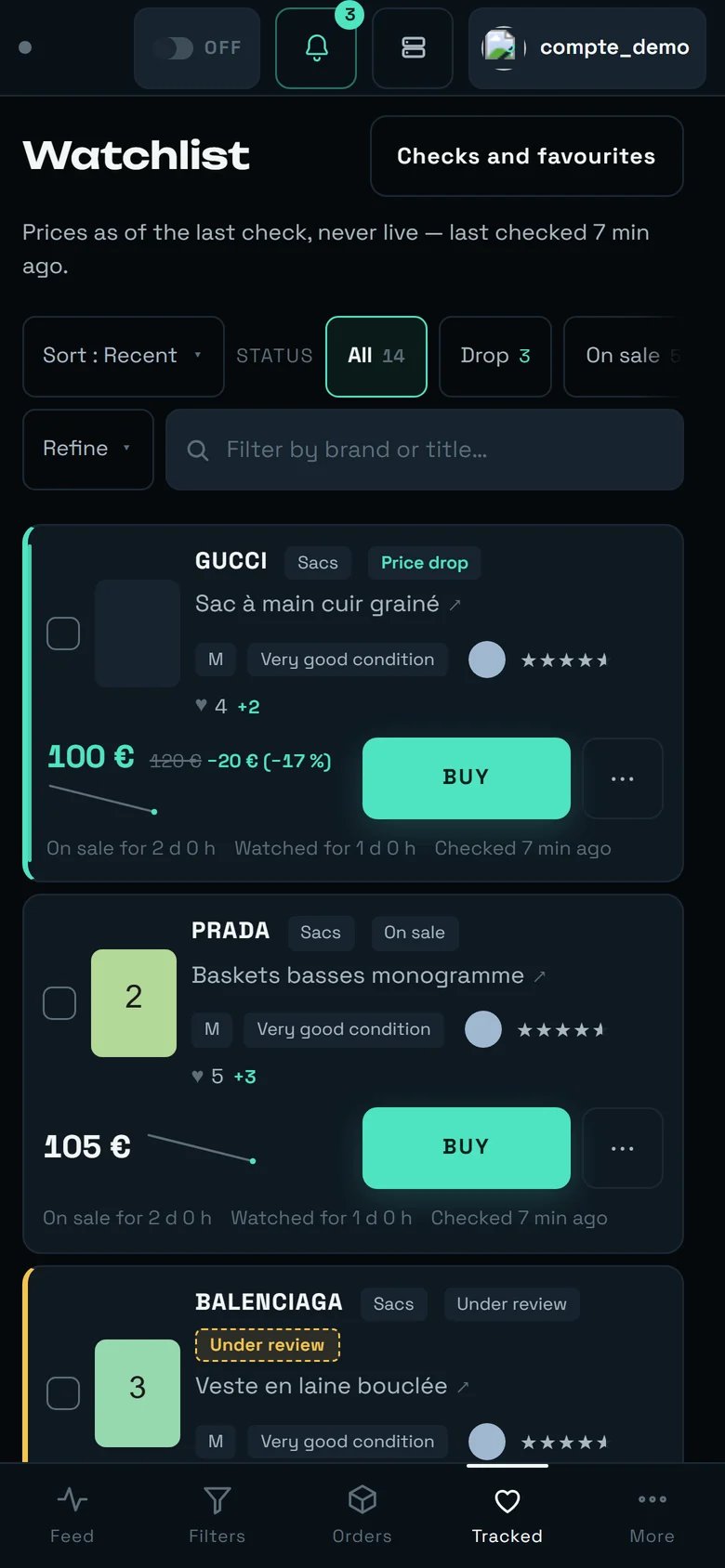
The watchlist on a phone. This capture predates the handle: today the actions and the toolbar are folded behind it on arrival, and “Refine” still holds brand, category, price and TIDY UP.
What changes
- A handle under the title — a short bar announced “Show the controls” — folds the actions, the
Checks and favouritesdrawer and the toolbar on arrival; one tap brings them back (“Hide the controls” then), and the choice is remembered for this screen, on this device. The “Track an item by its link” block follows that fold — except on an empty list, where it stays in view. - The
List/Grid/Tableselector is not shown: the grid needs 760 px, the table 1100 px. We do not offer a dead button. - Brand, category, price bounds and the
TIDY UPbuttons move behindRefine. - The status chips scroll horizontally.
- The card reorganises into three rows: identity, then price and purchase, then the times.
- Navigation moves to the bottom:
Feed,Filters,Orders,Tracked,More.
What does not change
- Sorting, the
Allchip and the search stay directly accessible. BUY, the⋯menu and the details view work identically.- The subtitle keeps announcing the date of the last check.
- Touch targets are at least 44 px: the sort menu is usable without zooming.
The limits, said plainly
Going further
The dashboard
Orders
Accounts
Settings
Purchase ceiling, the automatic pick-up point and the notifications.